
LittleLives (Mobile App)
Getting Started
Where to download the LittleLives app
To download the Educator's App, you can search up "LittleLives" on your Apple App Store or Android Play Store.
Login Interface
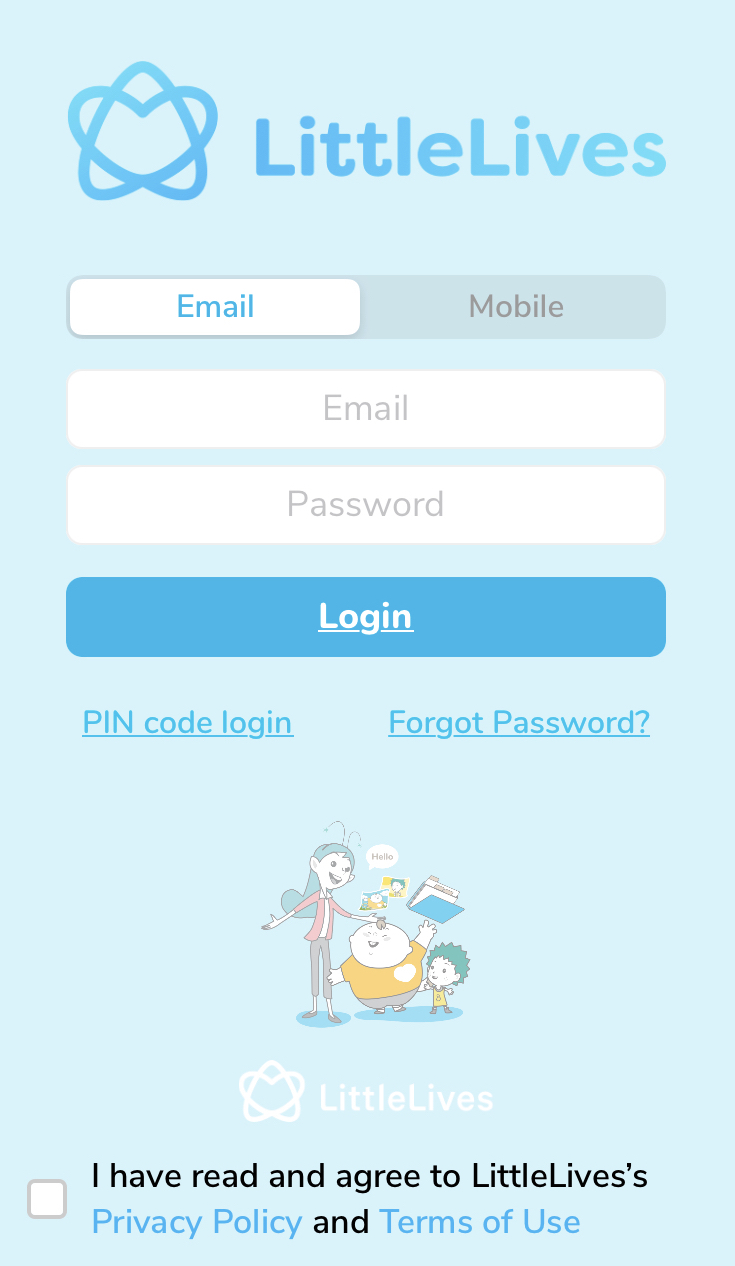
This is how the login interface looks like when you first open the app.
Where do I retrieve my login credentials?
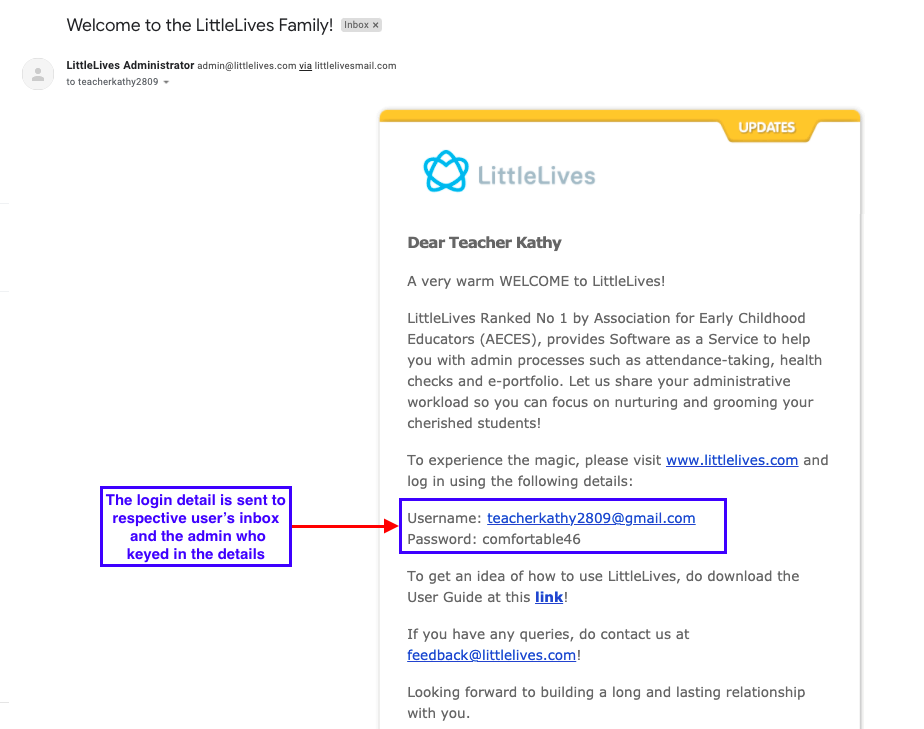
1. Once your account has been added by the school admin into the system, a welcome email will be sent out to the email address you have provided to school
2. The welcome email will include the email address you’ve provided to the school with a unique first-time log in password, website portal link and recommended browsers to utilise, as well as a link to a copy of the LittleLives User Guide (example below).
Note:
• If you realise that there’s been a mistake (spelling error, wrong email etc.) in the username/email credentials, do reach out to the school admin to make the changes.
How to login?
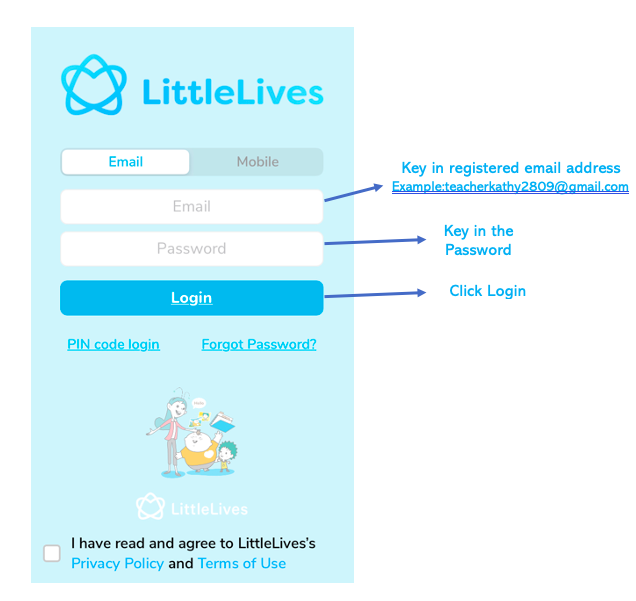
The main method to login into the LittleLives app is by using the email. Before a staff account is created, it is compulsory to provide email for account creation.
Here is the interface when you login using the email:
1) Login with Email Address
Once the account has been created and mobile number is keyed in to the account, the staffs will have two additional options to login.
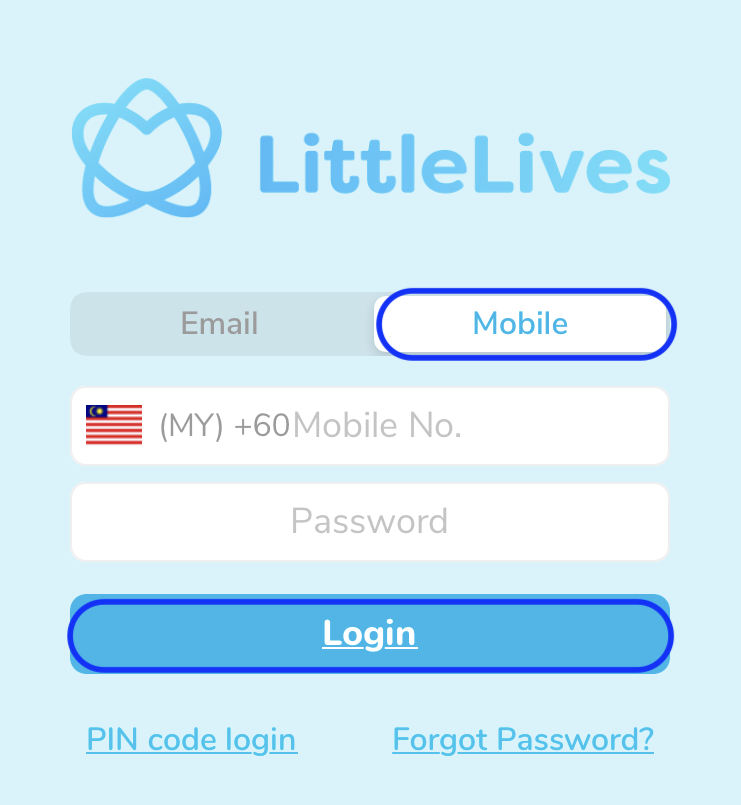
2) Login with Mobile Number
1. If the staff keyed in his/her phone number to their profiles, they can key in registered phone number to the login page
2. They will key in same password as registered email to login
3) Login with PIN code
1. This is suitable for the Staffs have their mobile number registered to their accounts
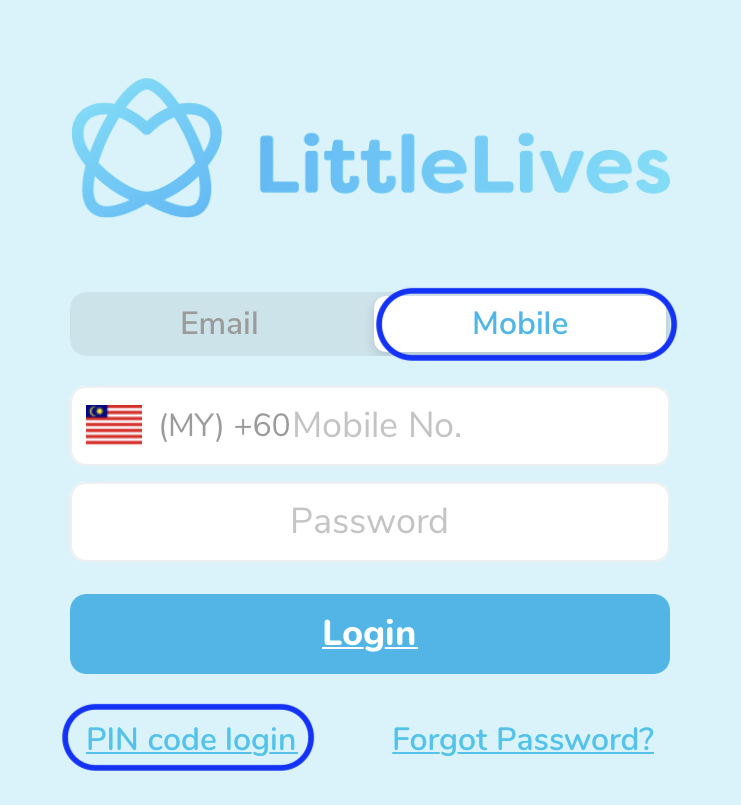
2. Select Mobile and followed by PIN code login
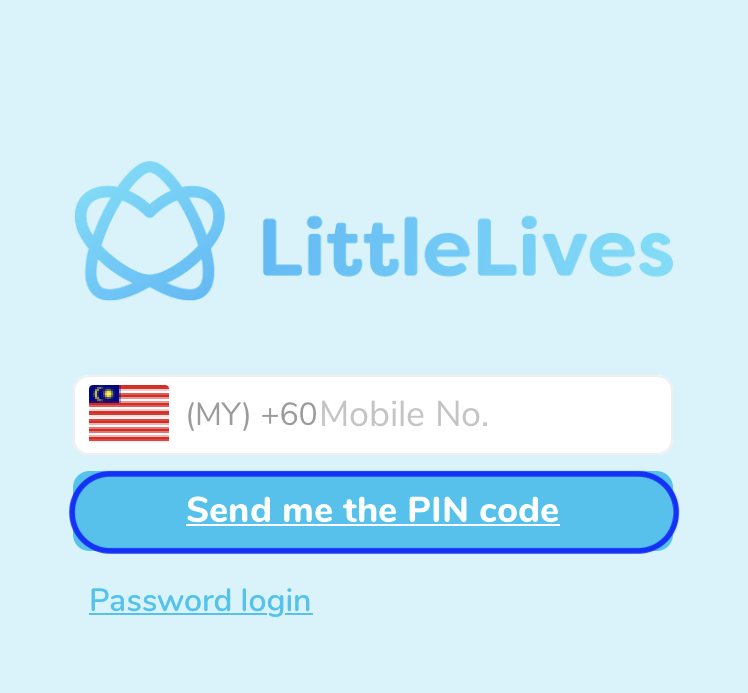
3. Then, type in your mobile number and tap on Send me the PIN code
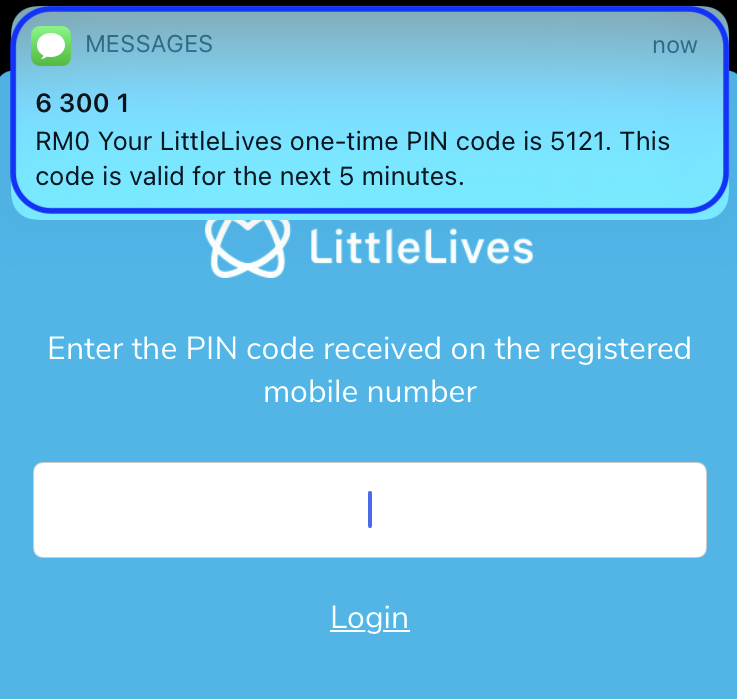
4. The system will send out a one-time pin code via a SMS
5. Copy or type the PIN code in the field and click Login
Note:
• If you had keyed in your mobile number and a prompt appears saying that the credentials you entered were invalid, this means that your number is currently not found in the system. Please contact the school to check to allow them to make any amendments on their end if needed.
• If you forgot your password down the road, select Forgot password? to reset your password accordingly.
Getting Around
Understand the Different Tabs
Once you are logged in to the LittleLives app, you will see Portfolio, Communications and Health tab.

Portfolio tab
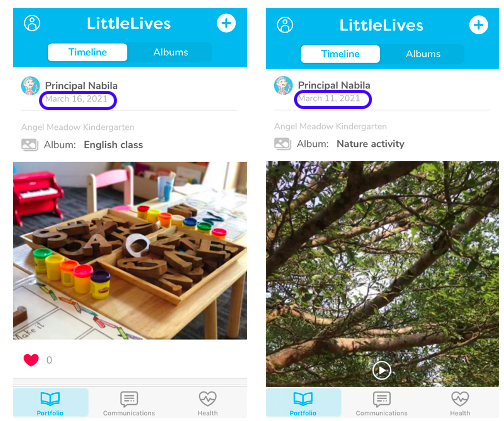
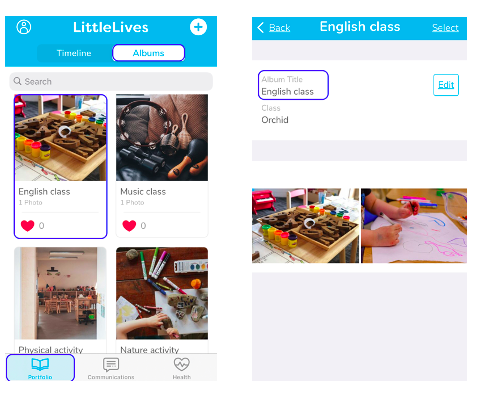
1. Timeline
Shows the latest media in sequence of upload. You can scroll down to view previous media uploads.
2. Album
Shows the albums created for your photos and videos. You can click into the different albums to view the media uploaded.
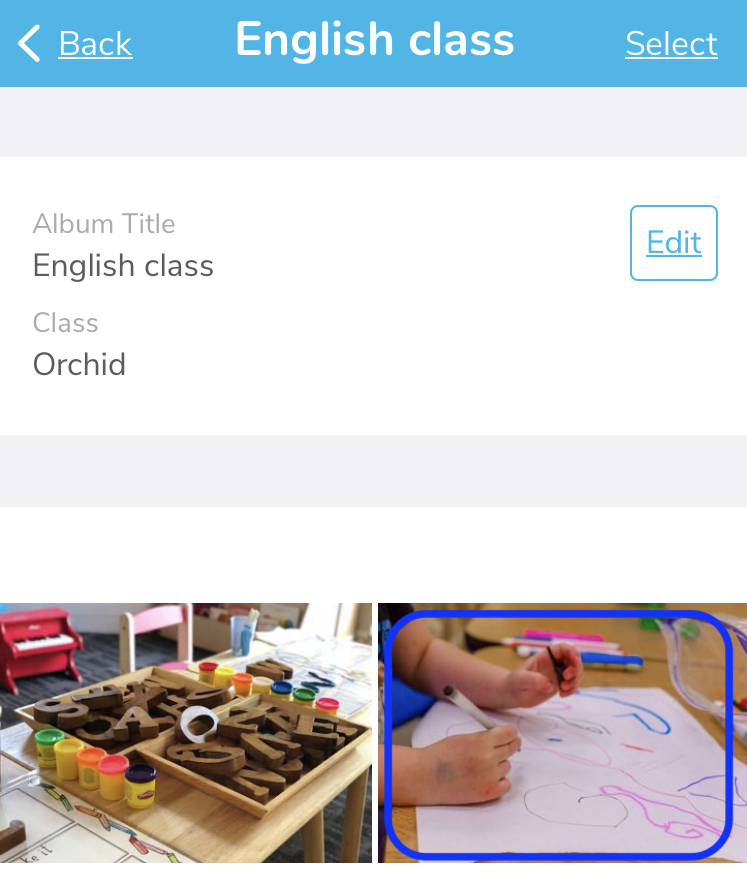
Here's the view on album created and example if we are to tap into English Class album.
How do I upload photo and video to Portfolio?
Step 1: Click on the '+' symbol
Step 2: Select Portfolio (for iOS) or New Photo & Video (for Android)
Step 3: Click on Photo & Video Gallery (for iOS) or directly select the media (for Android)
Step 4: Click Done or tap the tick symbol
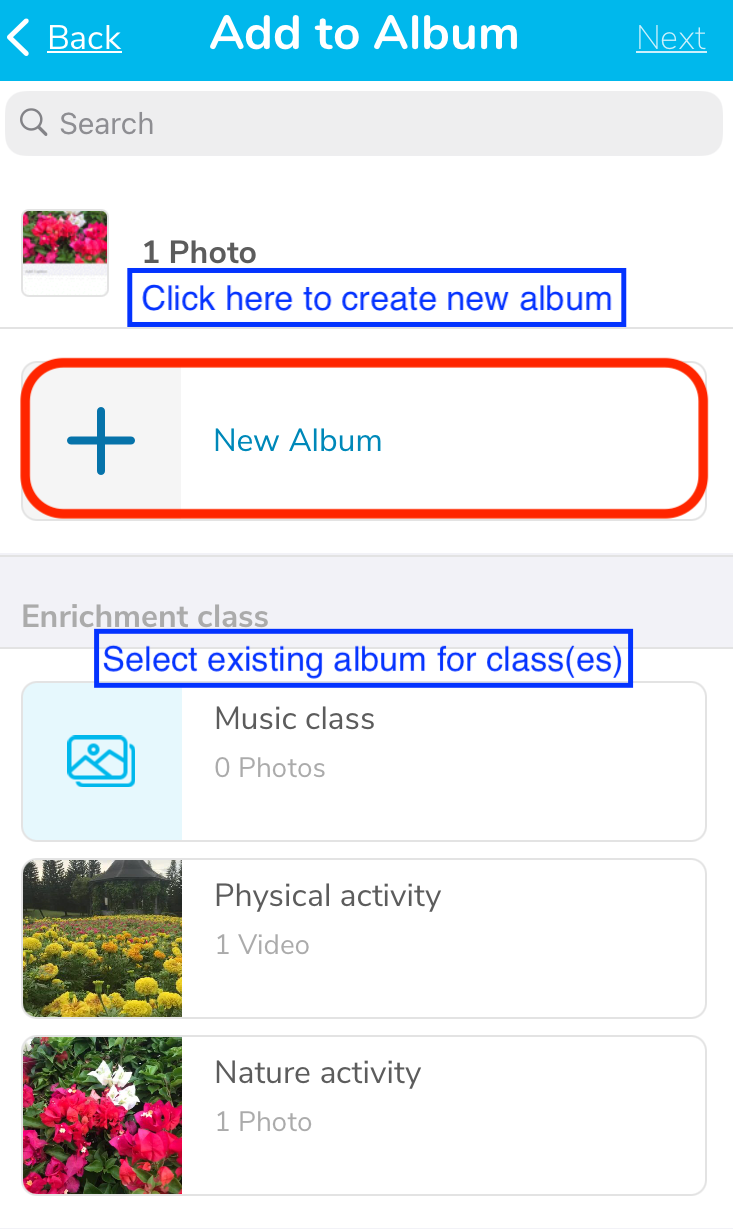
Step 5: Scroll down to select existing album or create a new album
(note: if you are creating a new album, add a suitable Album Title, Description of activity that will be in it (optional) and select the Class involved and Save)
Parents will be able to view the media(s) uploaded if the school has set the publish date and tag the child in the media uploaded.
The Activity Date refers to date on which activity is conducted (example: school procedure is for admin to check all the photos before set to publish on 5pm, as the activity is conducted in the morning, teachers can select exact date and time for the activity).
It is highly recommended to set activity date so the parents are informed on their child activity and schedule.
Step 6: Click Next and remember to set the publish date, tag the children for the media(s).
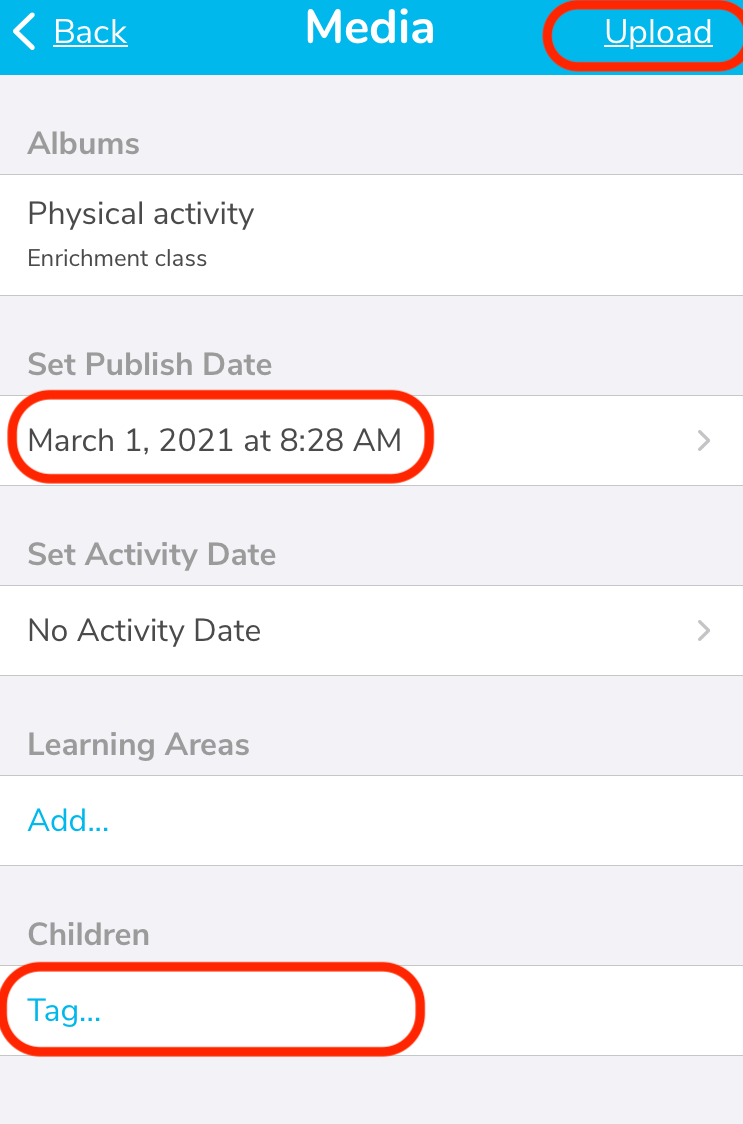
Step 7: Click Upload!
How do I insert caption to photo and video?
Step 1: Click on the photo or video you wish to caption from the Timeline
Step 2: Click on 'Edit Detail'
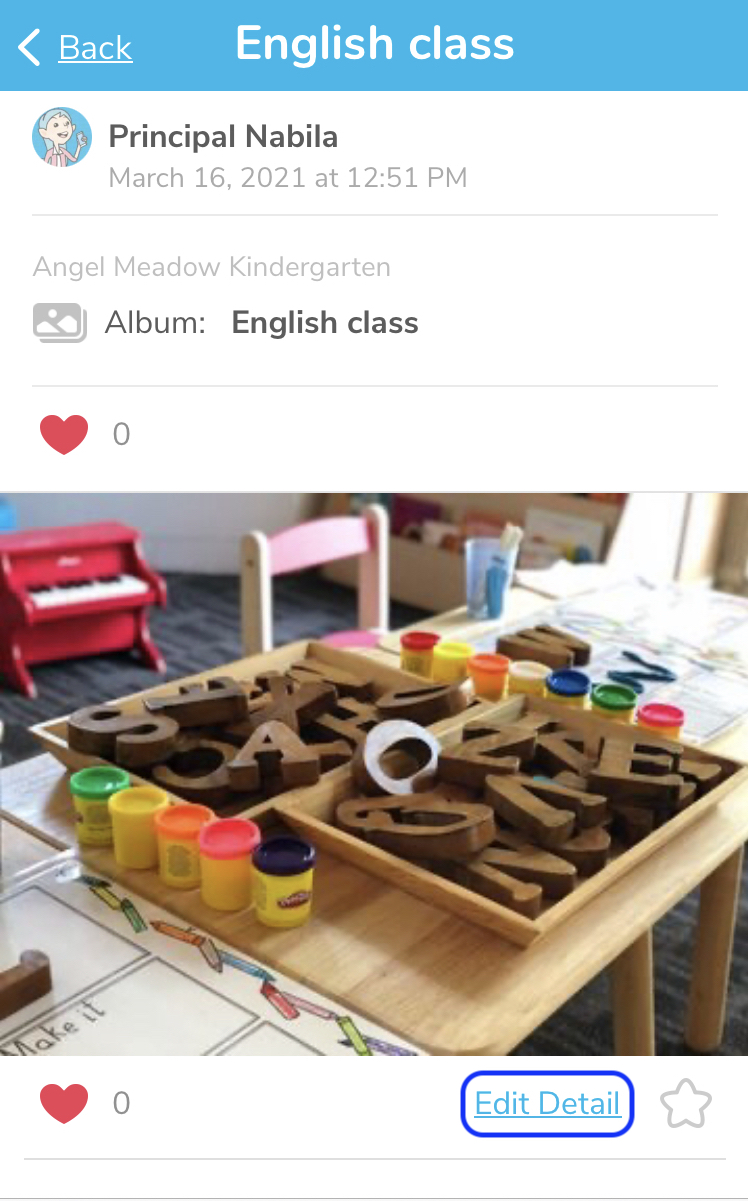
Step 3: Scroll to find the photo and click on it
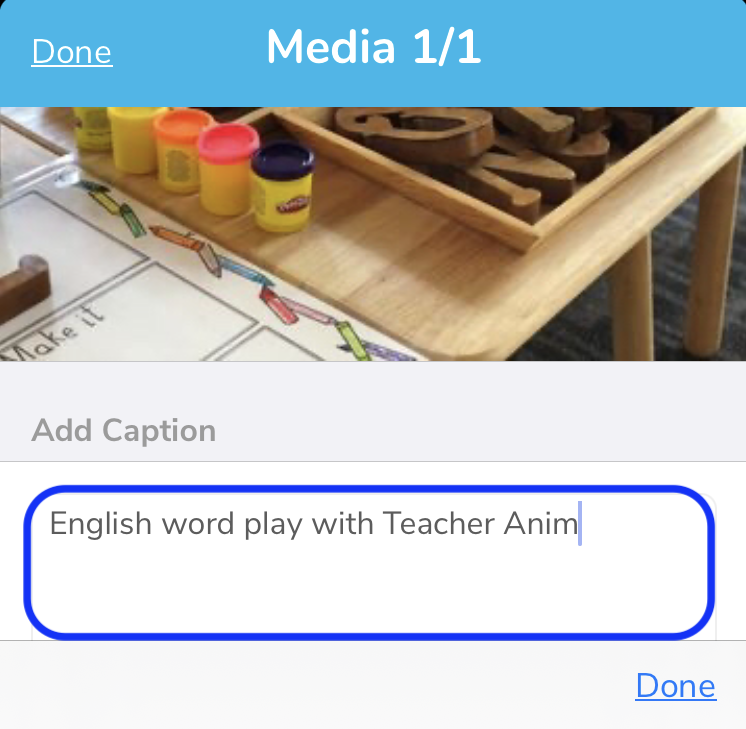
Step 4: Fill in the Add Caption box and write in suitable details for the media
Tip: You can write individual comment for each student tagged in the photo or video too. Simply click on 'Add Comment' and select the student before writing in individual comment.
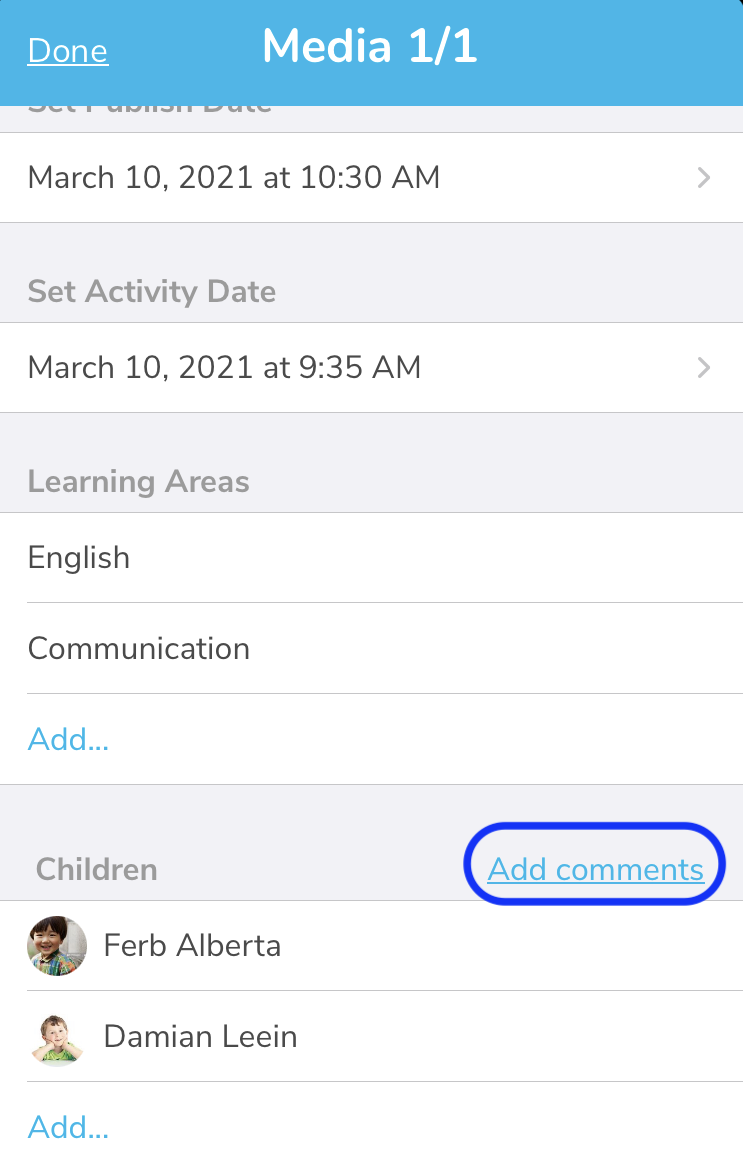
Step 5: Click 'Done'
Step 6: Make sure you save it!
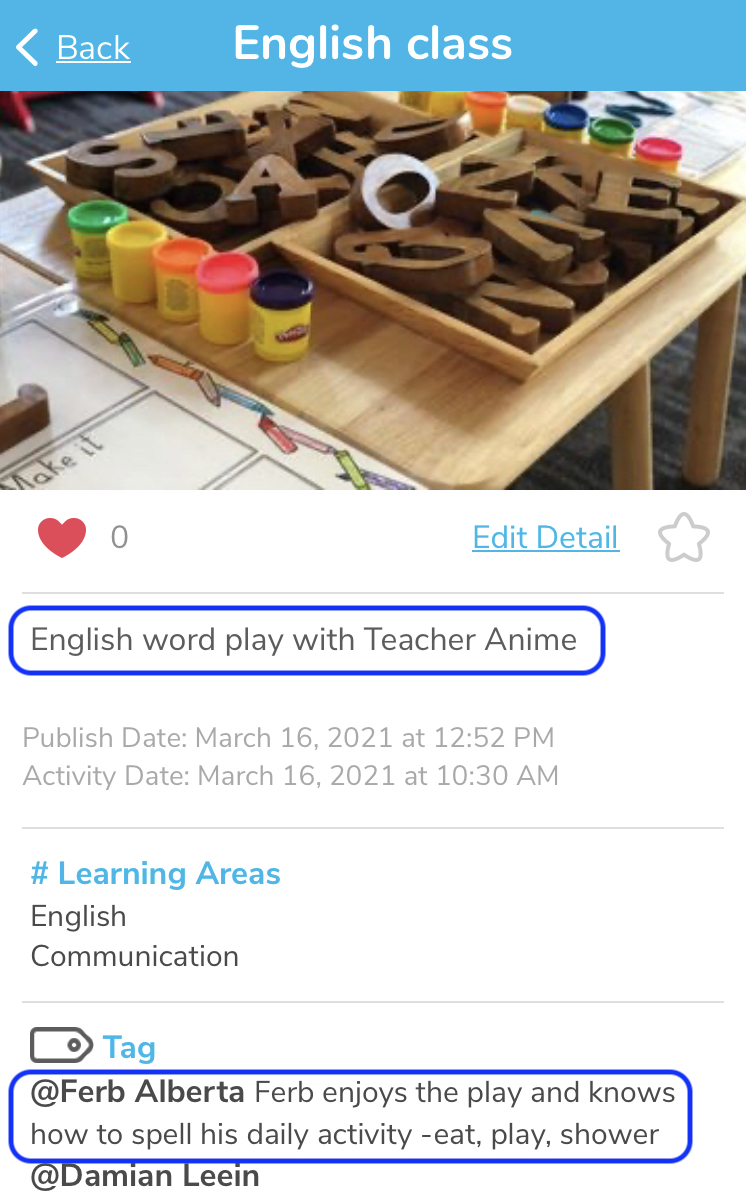
You can see the updated caption after you click into the photo on your Portfolio timeline.
How do I delete photo and video uploaded?
Step 1: At Portfolio, click on Albums tab
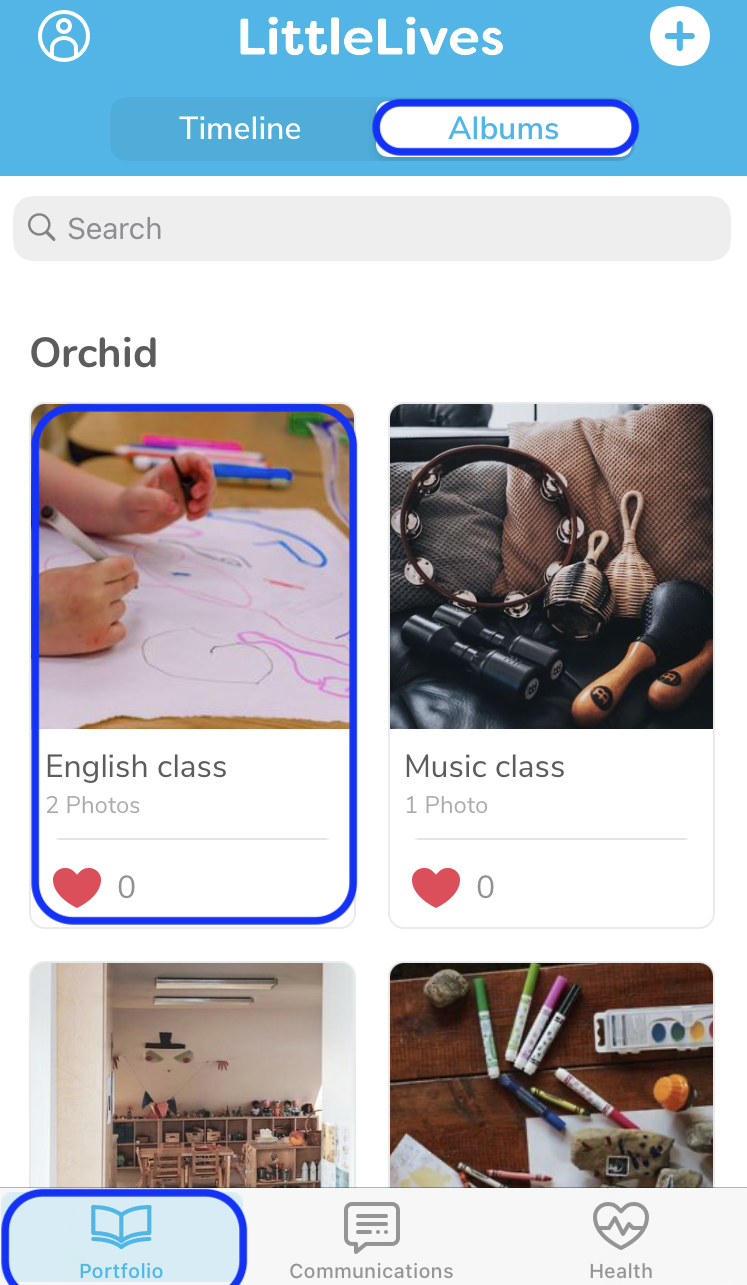
Step 2: Click on the album that contains the photo or video you wish to delete
Step 3: Click on photo or video you wish to delete
Step 4: Click 'Delete Media'
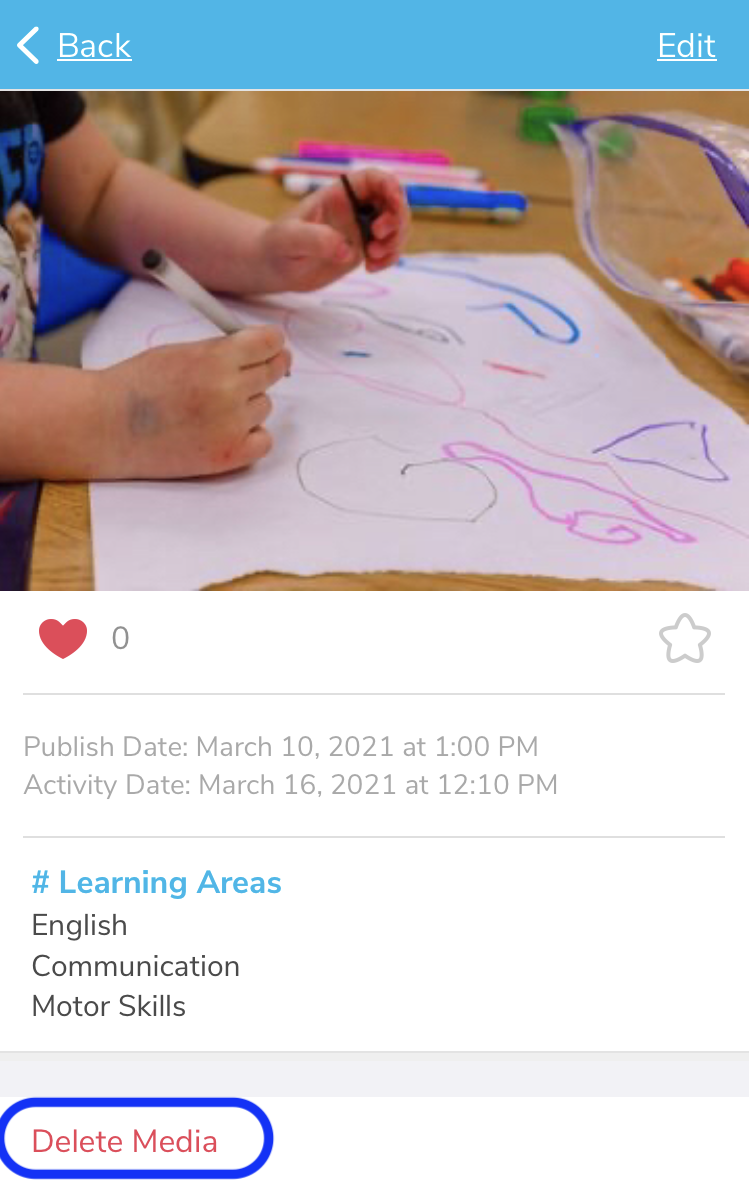
Step 5: A pop up will appear. Tap "Yes" to confirm the deletion
Step 6: The media will be permanently deleted from the album
Communications tab
Allow you to view conversation between the school and parents. You can click on Conversations or Broadcast and tap on individual response to view the details.
How do I send private message a parent?
Step 1: Tap on the '+' symbol
Step 2: Select Conversation
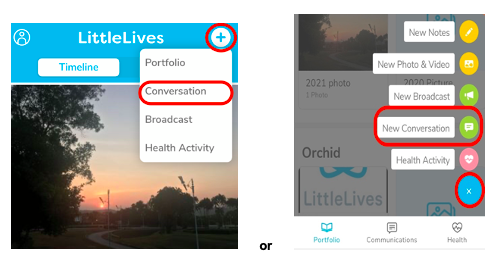
(It is at the top right corner for iOS and in the bottom right corner for Android device)
Step 3: Click on “To” and add recipient(s) from the list of parents
Step 4: Key in suitable Subject, type in the message.
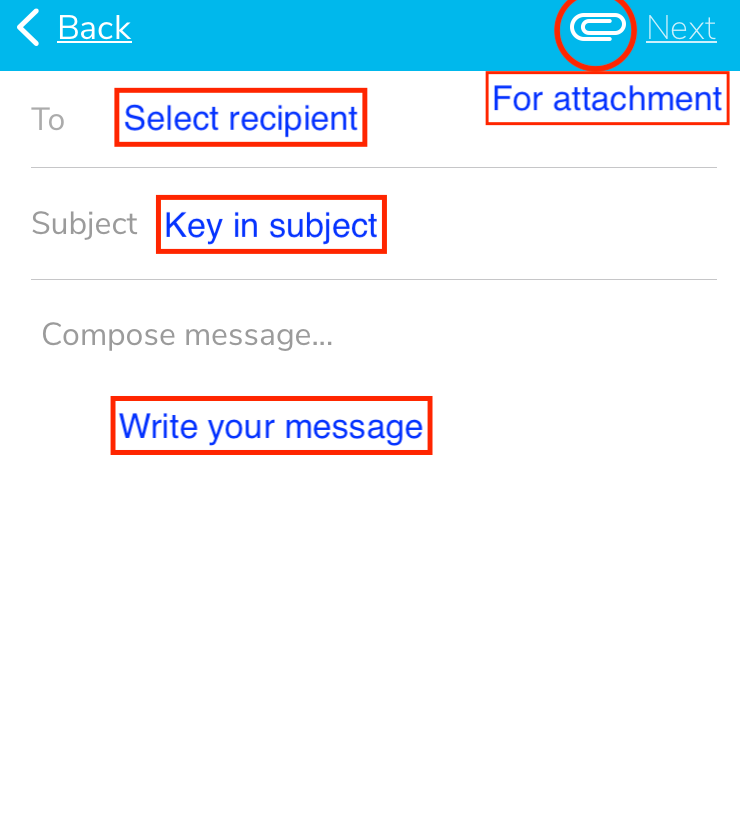
You can attach photo(s) or file(s) by clicking to the paper clip icon in the top right corner
Step 5: Click on Next
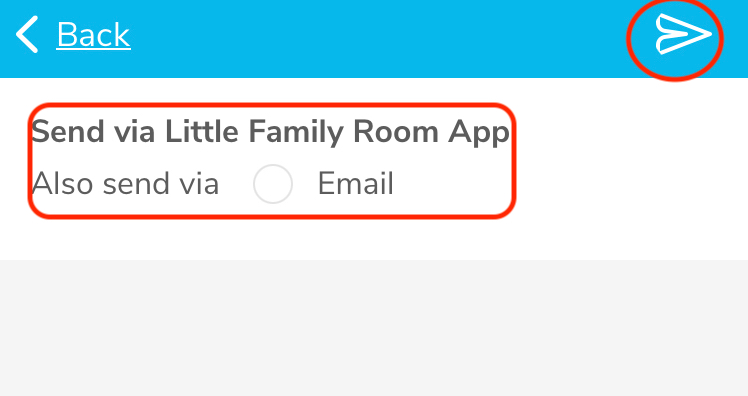
Step 6: [Optional] Tick option to also send message to parent's email
Step 7: Click on the arrow to send the message
How do I post broadcast?
Step 1: Click to the '+' button.
Step 2: Choose “Broadcast” to create a new one
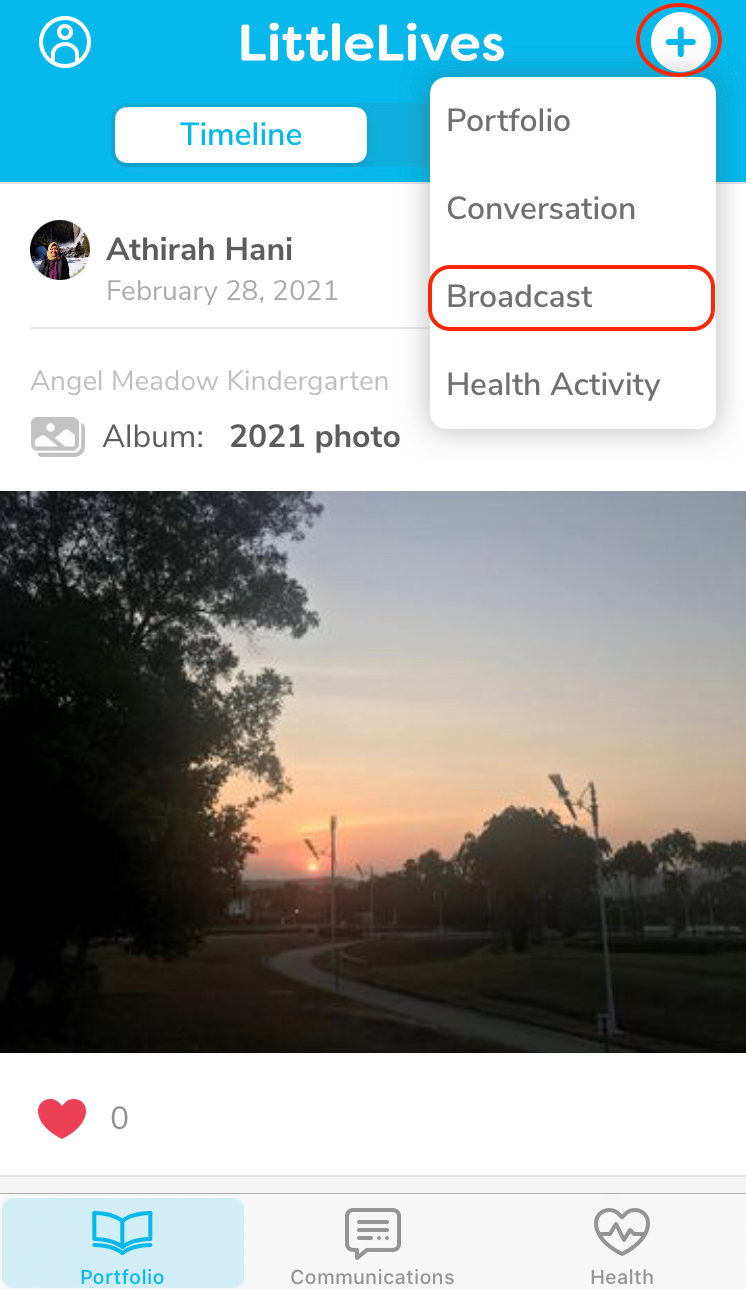
(It is at the top right corner in iPhone and at the bottom right corner for Android)
Step 3: Select recipients by tapping on 'To', then select class(es) or "Select All' if the message is meant for all classes, then, click back.
You have the option to:
Customise the recipients -
If you choose not to send the broadcast for someone, click on the class name box then un-select that person's name.
Send to Future parents or Withdrawn students -
Choose to send to parents of future students or withdrawn students selecting the option in 'include'. This feature is very useful with broadcast for promotional purposes or for alumni events.
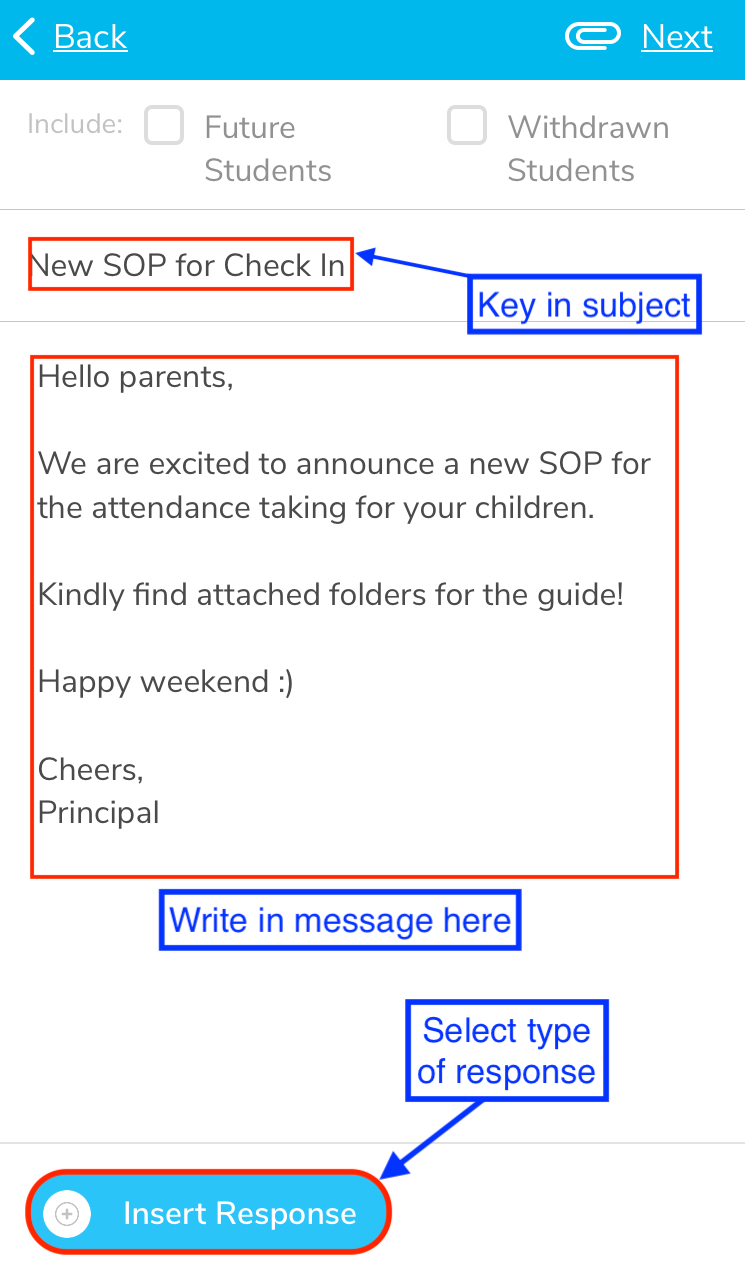
Step 4: Key in the subject and content of the message.
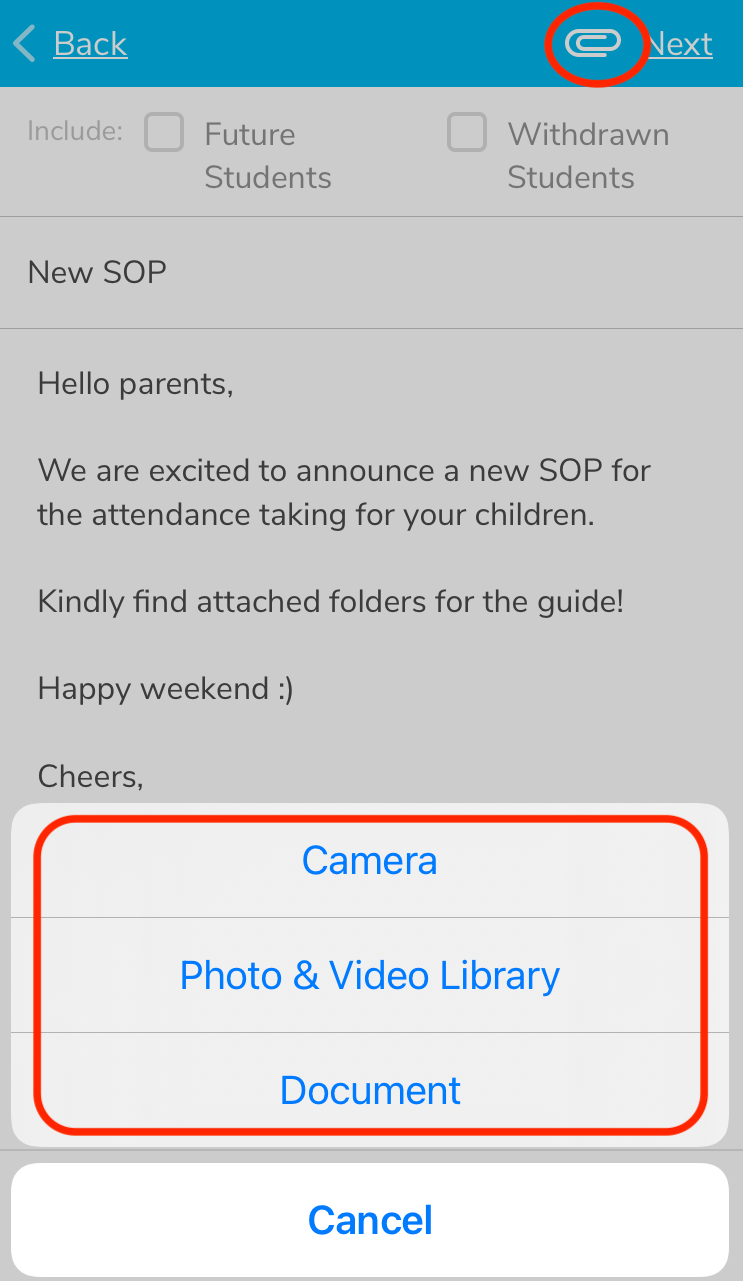
You can attach file(s) by clicking to the paper clip icon. You can attach more than 1 file here.
Step 5: You can insert response to the broadcast if needed.
Step 6: Click to “Next” in the top right corner
Step 7: Choose “Also send to Email” if needed
If you do so, parents will receive the conversation in 2 channels:
- Little Family Room App and
- their mailbox
then, click on the paper plane icon to send the broadcast.
Health tab
- Allows educators to access LittlePoop data and key in health activities directly on their LittleLives app.
- However, it does not support the access of multiple users unlike the LittlePoop app.
How do I record student's health activity?
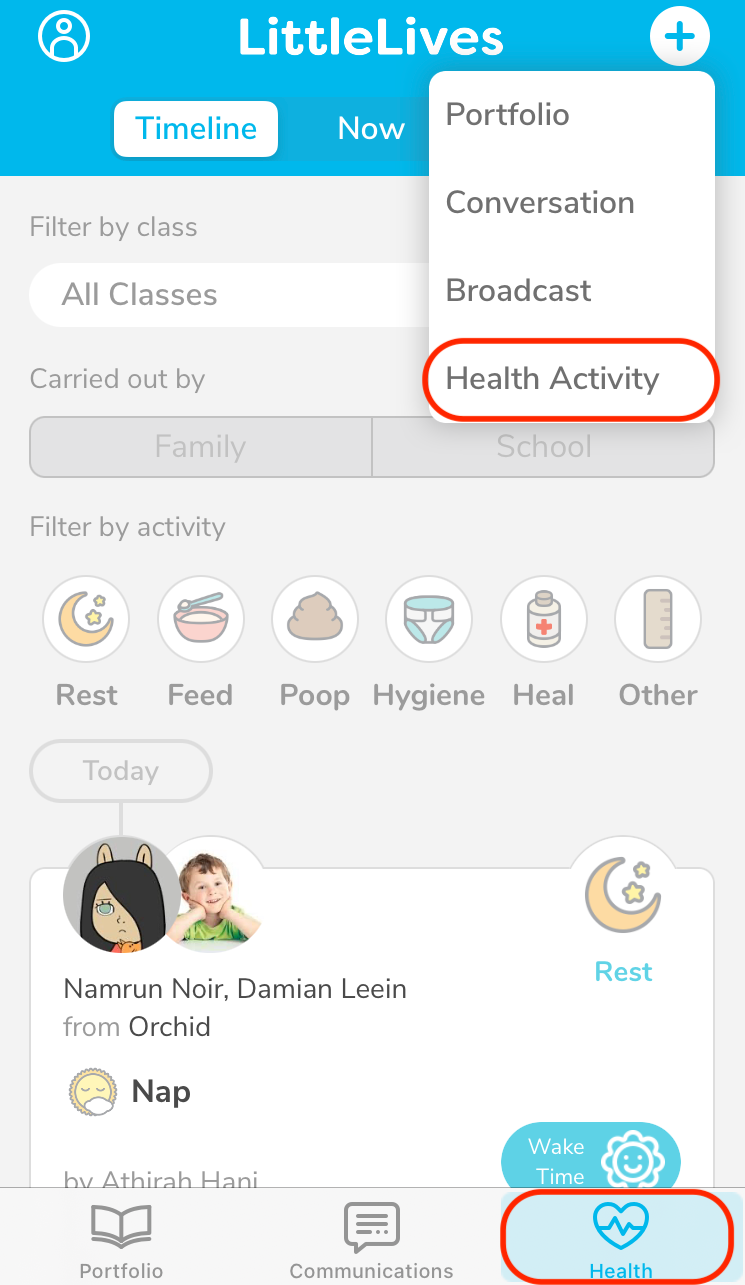
Step 1: Select the ‘Health’ tab at the bottom bar and tap on the “+” icon to record a new Health Activity
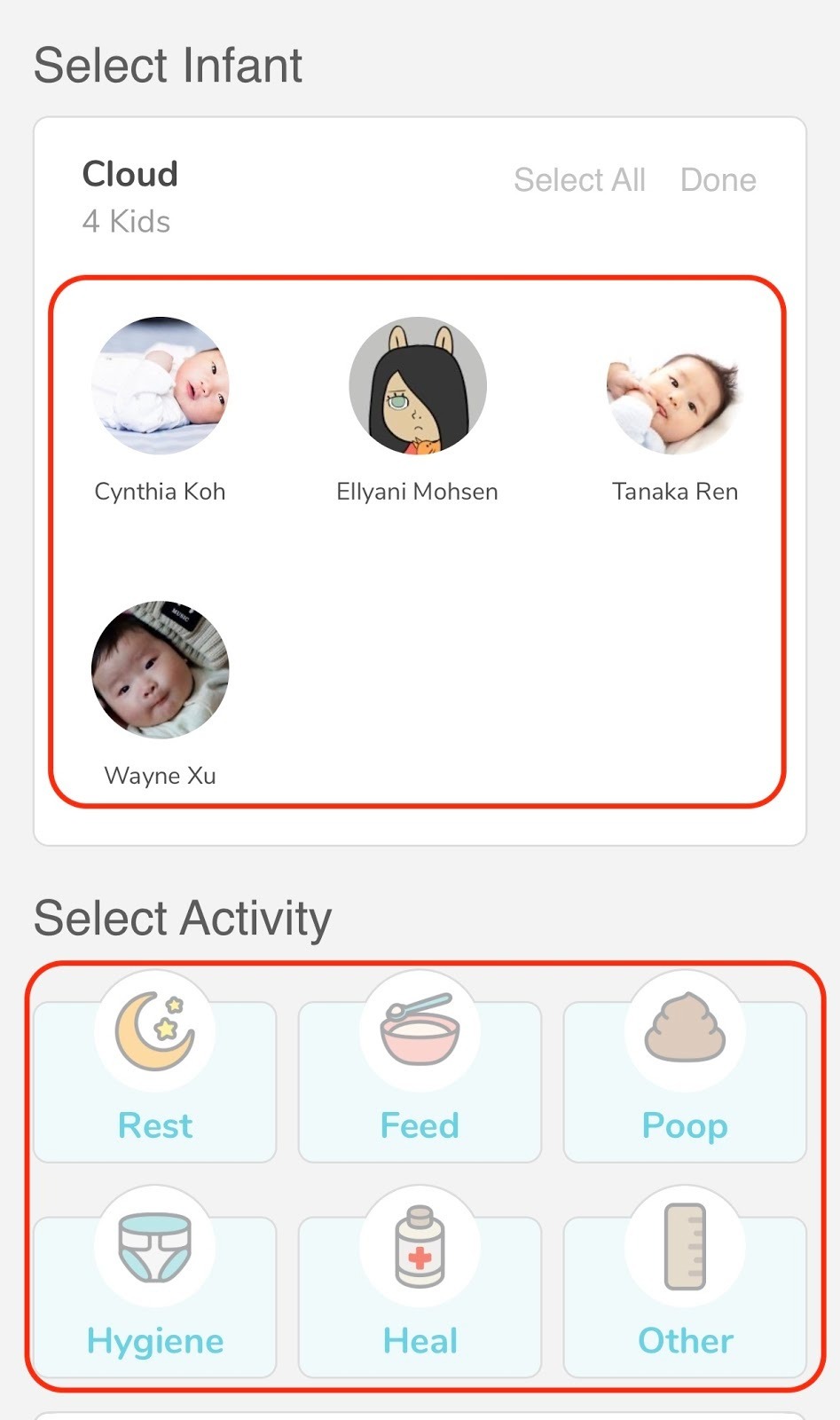
Step 2: Tap on the class and select the Infant and Activity to record
Step 3: After selecting the Infant and Activity, input necessary details or media
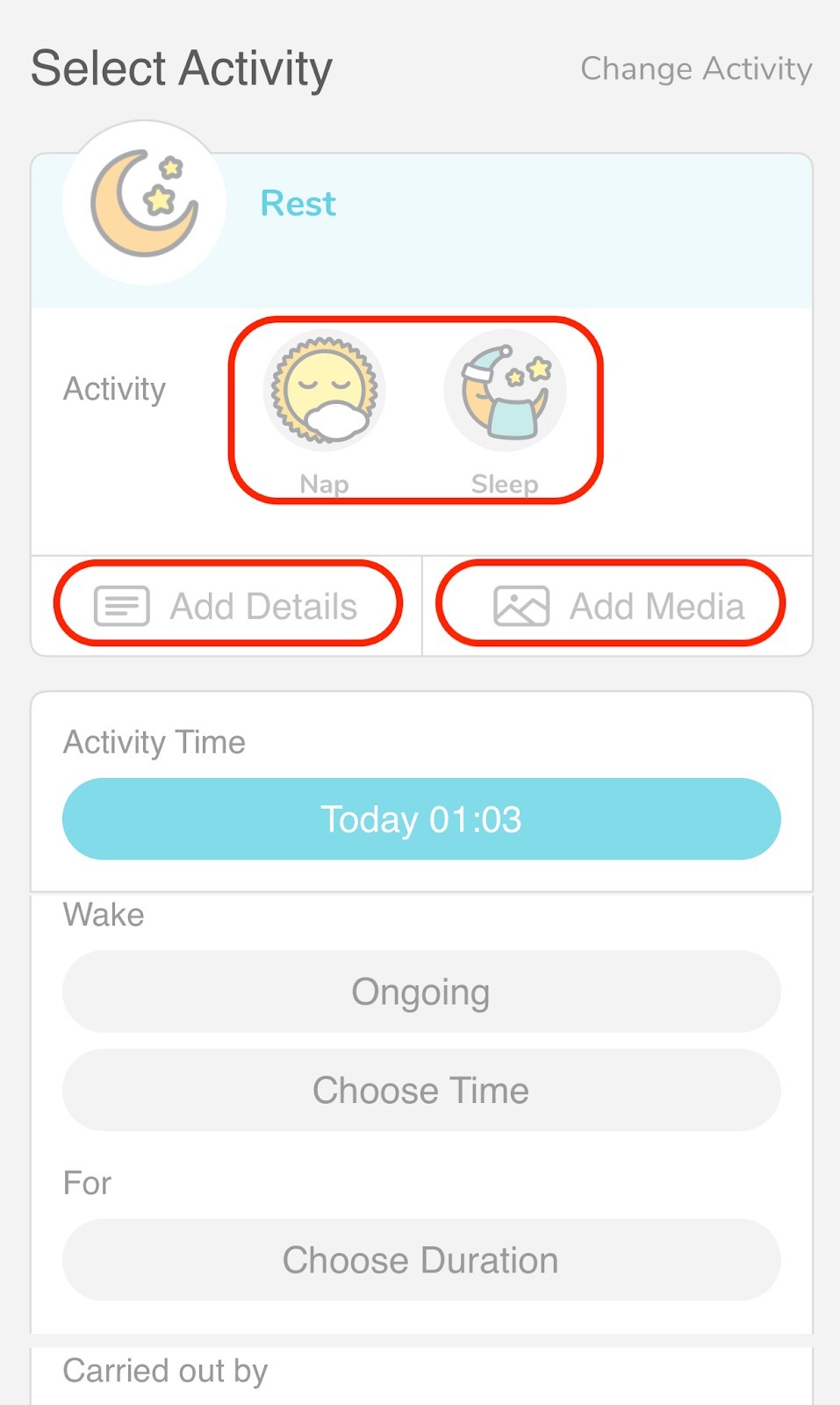
Step 4: For certain activities, you can also indicate the duration of the activity or if there is “no end time” (eg. Feed)
Step 5: Save the entry!
How do I view health activity recorded?
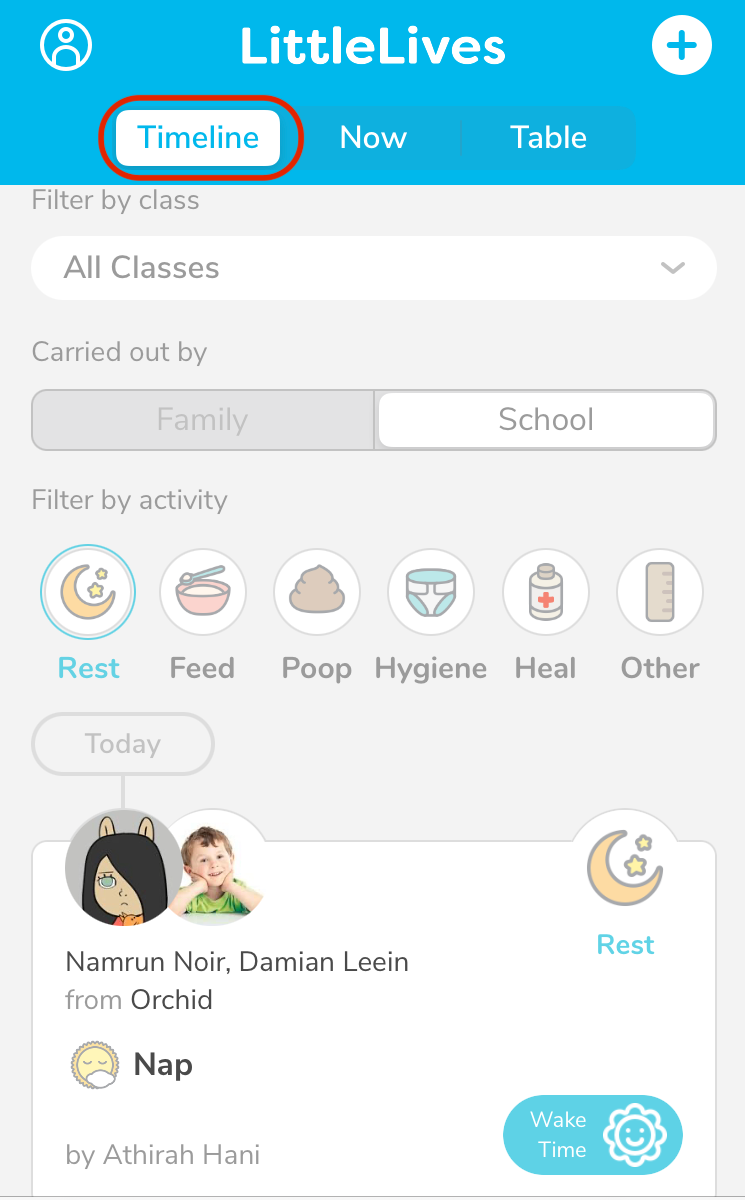
There are 3 types of view for the activities recorded on the ‘Health’ tab.
1. Timeline View – Shows the activities recorded based on timeline
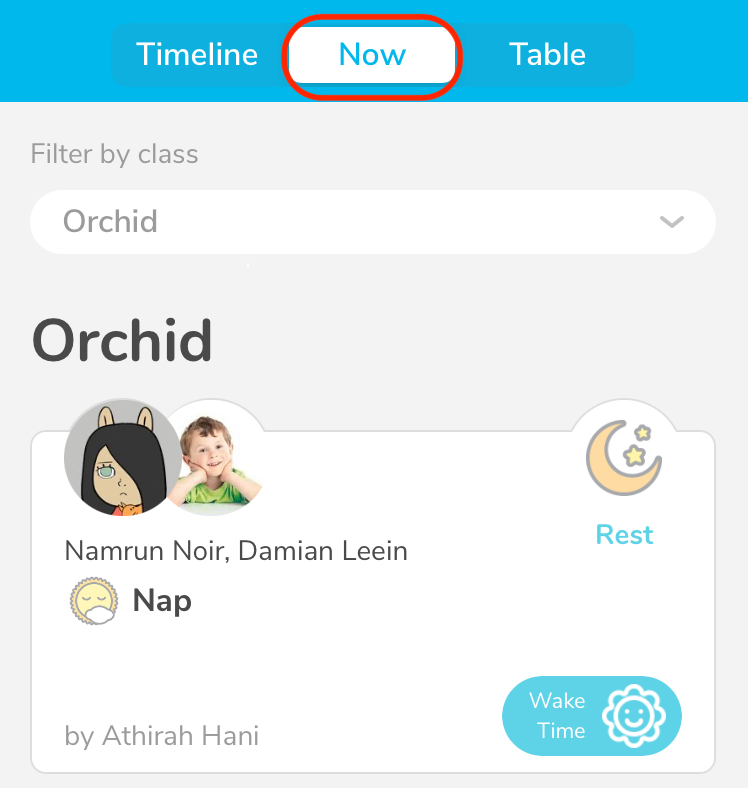
2. “Now” View – Shows ongoing and recent activities keyed in
For example, if an activity was recently created for a student’s nap, it will be displayed accordingly
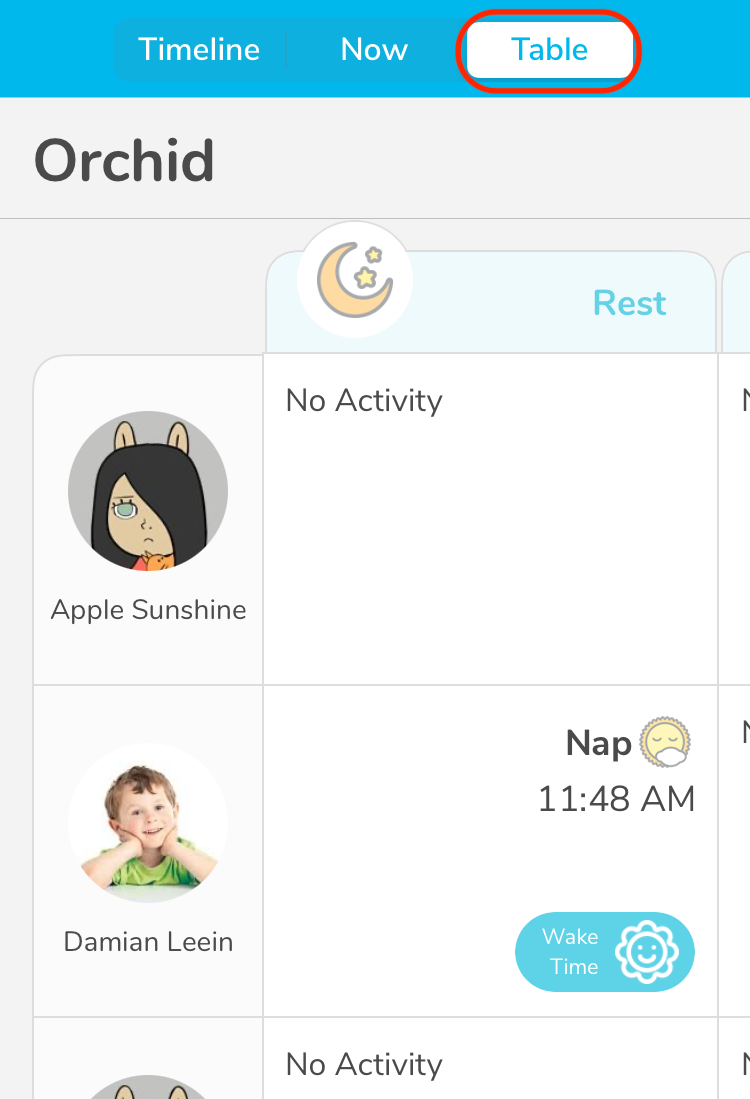
3. Table View – Layout all students by their class and shows the activities recorded in a table format
Settings
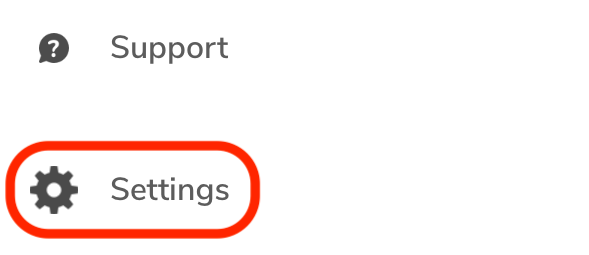
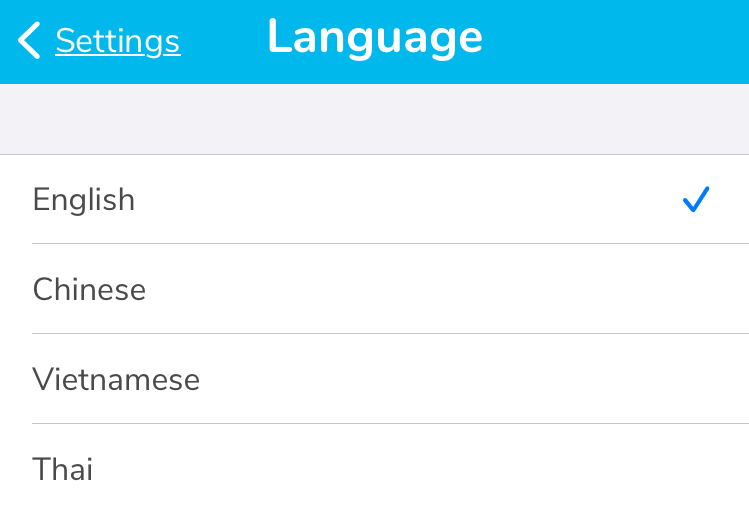
Allow user to change the language settings for the app.
You can change the language in the app simply by doing steps as follow:
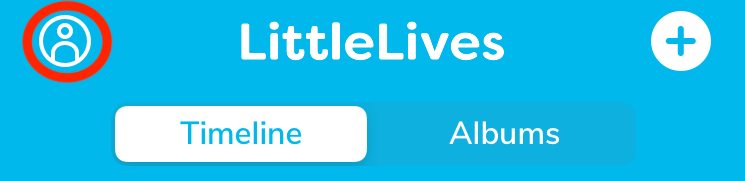
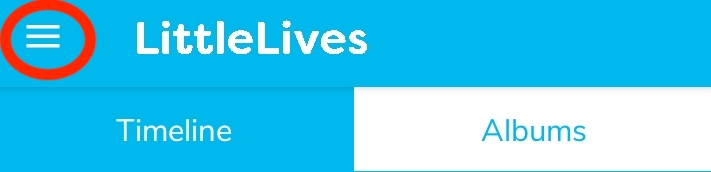
Step 1: Click on avatar icon (iOS) or on the 3- lines (Android) at the top left corner of the page
or
Step 2: Tap on Settings
Step 3: Tap on Language
Step 4: Select language you preferred from the drop down list menu
Was this article helpful?
That’s Great!
Thank you for your feedback
Sorry! We couldn't be helpful
Thank you for your feedback
Feedback sent
We appreciate your effort and will try to fix the article