How to Manage Banks in the System
1. Add a New Bank
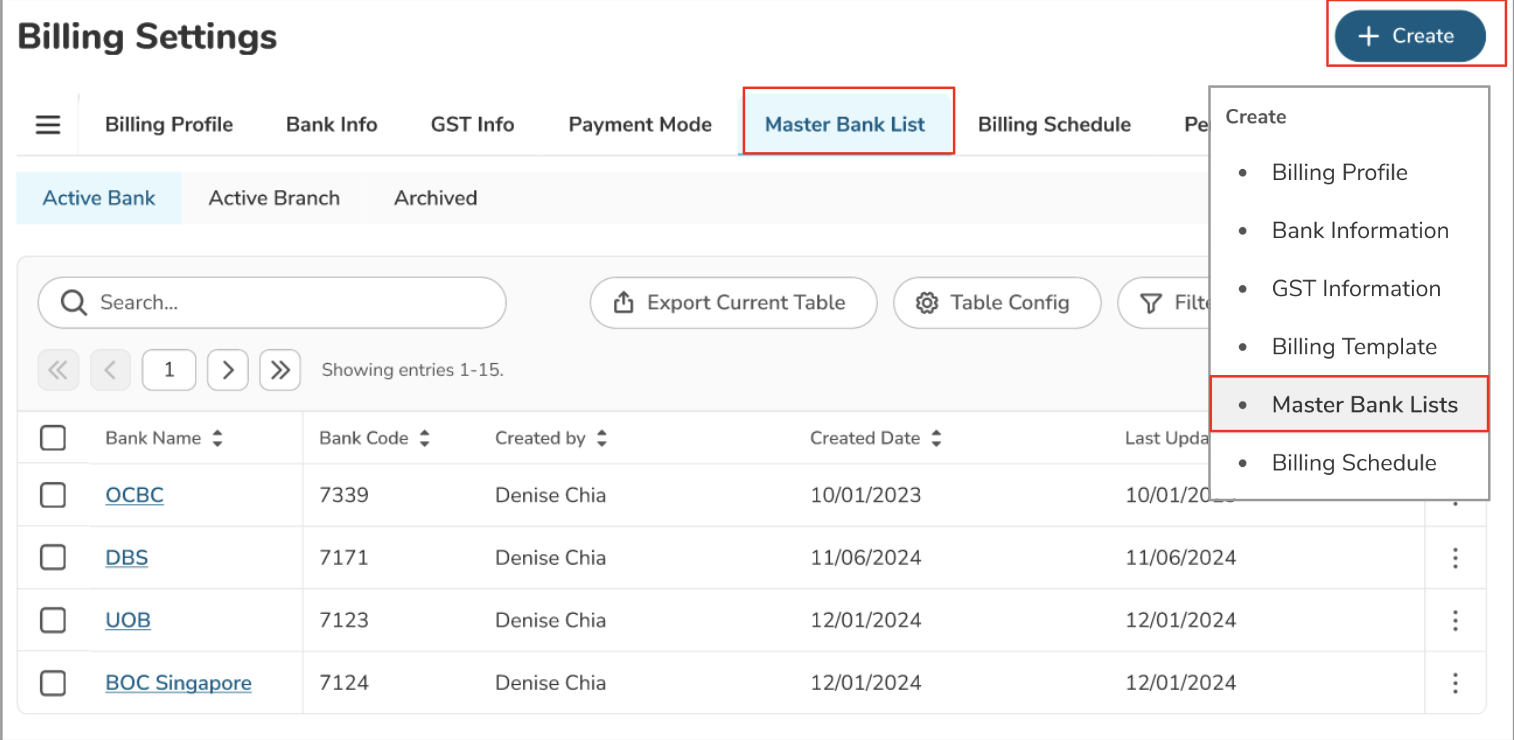
Step 1: Navigate to Billing Settings
Go to the Billing Settings section.
Step 2: Access Master Bank List
Under the Master Bank List tab, click the + Create button, and select Master Bank Lists.
Step 3: Enter Bank Details
Enter all the necessary bank details.
Note: Duplicate Bank Names and/or Bank Codes are not allowed.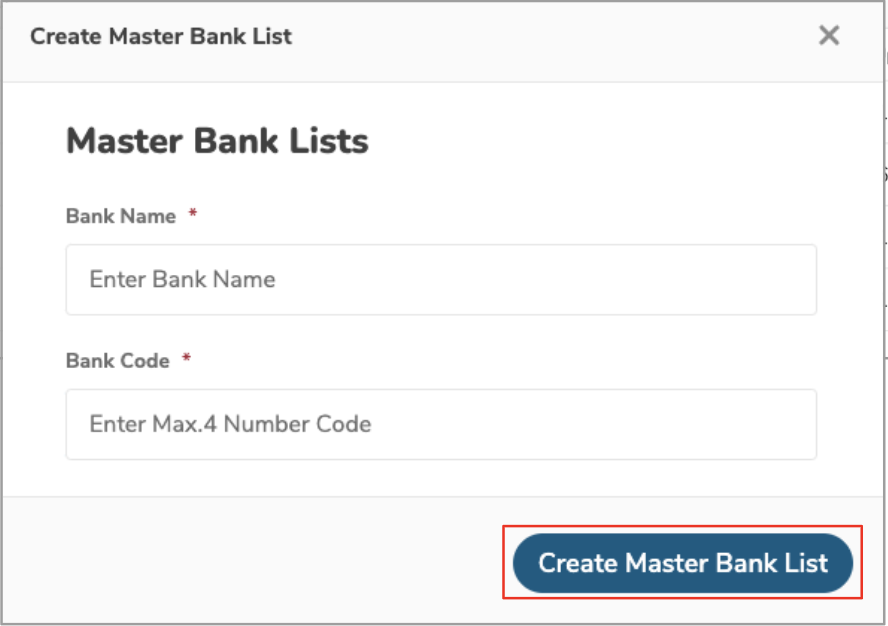
Step 4: Automatic Assignment
Once the bank information is created, it will be automatically assigned to all centres under that HQ.
The bank information will be applied to all the centres under the same HQ.
2. Archive / Unarchive a Bank
Step 1: Archive a Bank
Under the Master Bank List, go to the Active Bank tab.
Select the bank(s) you want to archive.
Click the Bulk Action button, and then click Archive.
Note: Archived banks will be automatically removed from the HQ bank list and all associated centres.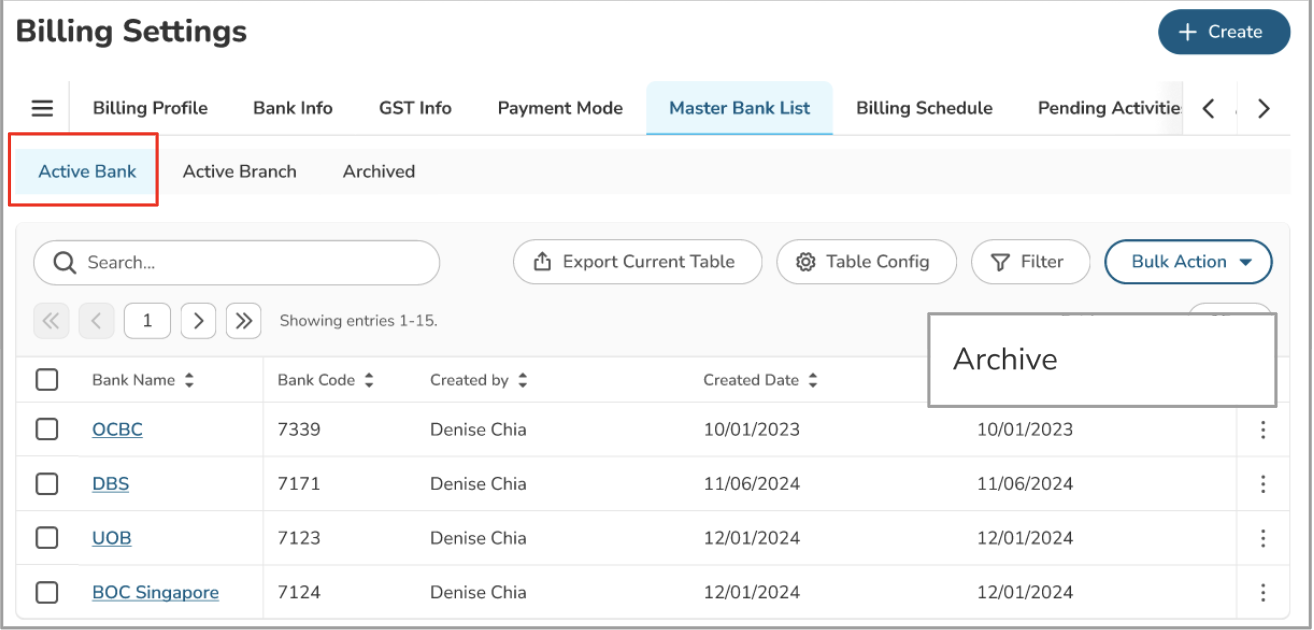
Step 2: Unarchive a Bank
Under the Master Bank List, go to the Archived tab.
Select the bank(s) you want to unarchive.
Click the Bulk Action button, and then click Unarchive.
Note: Unarchiving a bank will update its status to Active again.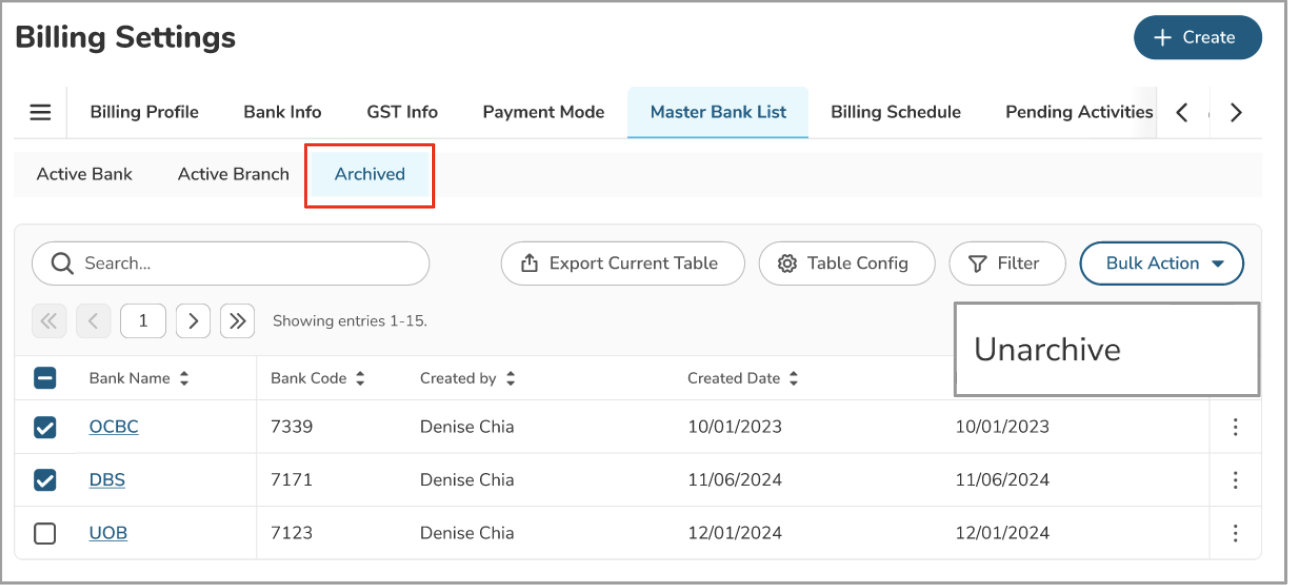
3. View a Centre’s Bank List
Step 1: Navigate to Centre Management
Go to the Centre Management section.
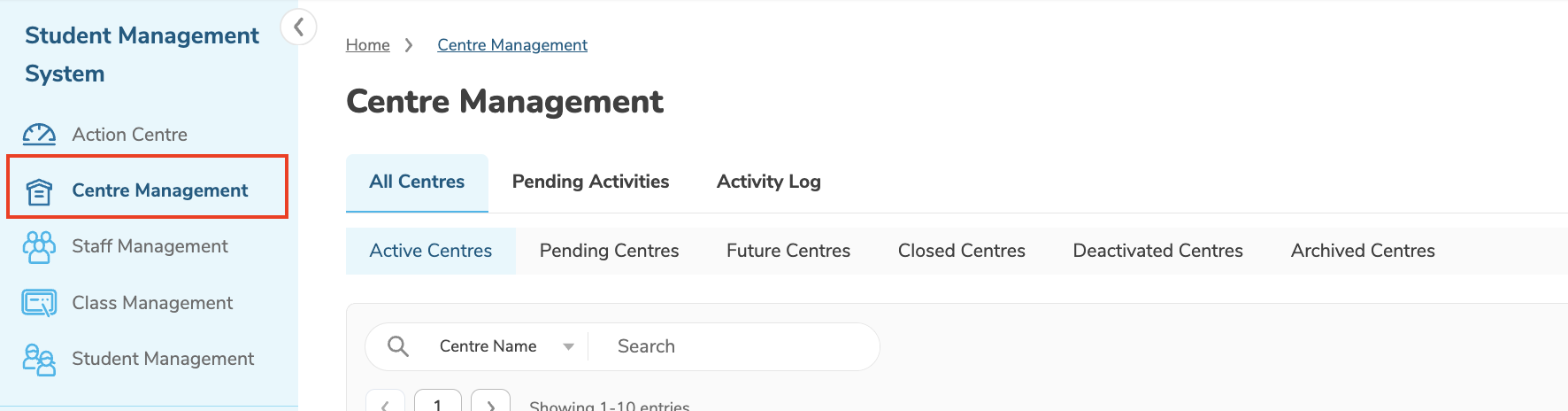
Step 2: Select Your Centre
Choose the centre you want to view.
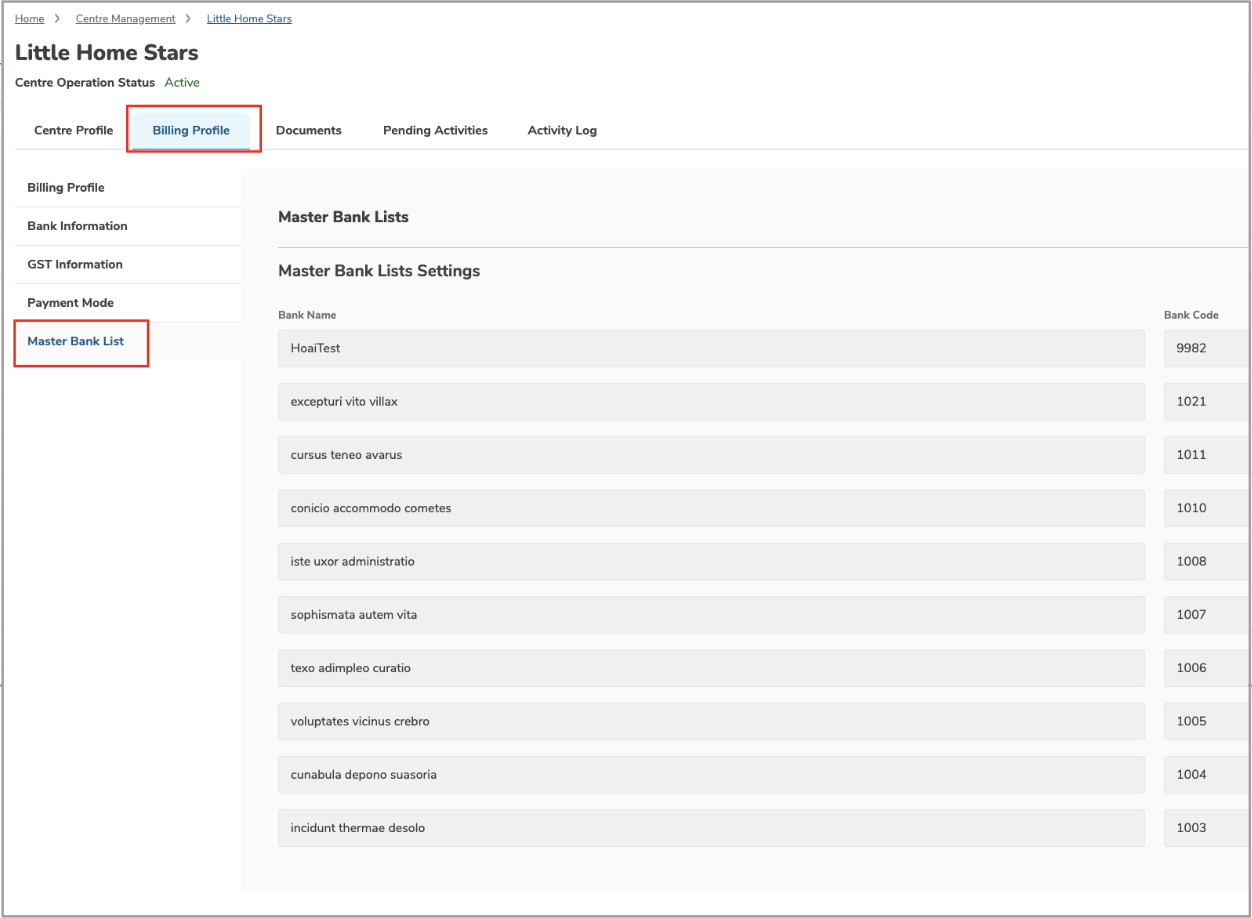
Step 3: Access the Master Bank List
On the centre’s profile page, go to the Billing Profile tab.
Select the Master Bank List section to view the assigned banks.
Was this article helpful?
That’s Great!
Thank you for your feedback
Sorry! We couldn't be helpful
Thank you for your feedback
Feedback sent
We appreciate your effort and will try to fix the article