
How to Publish a Broadcast
Publishing your broadcast is straightforward. Here's how to do it:
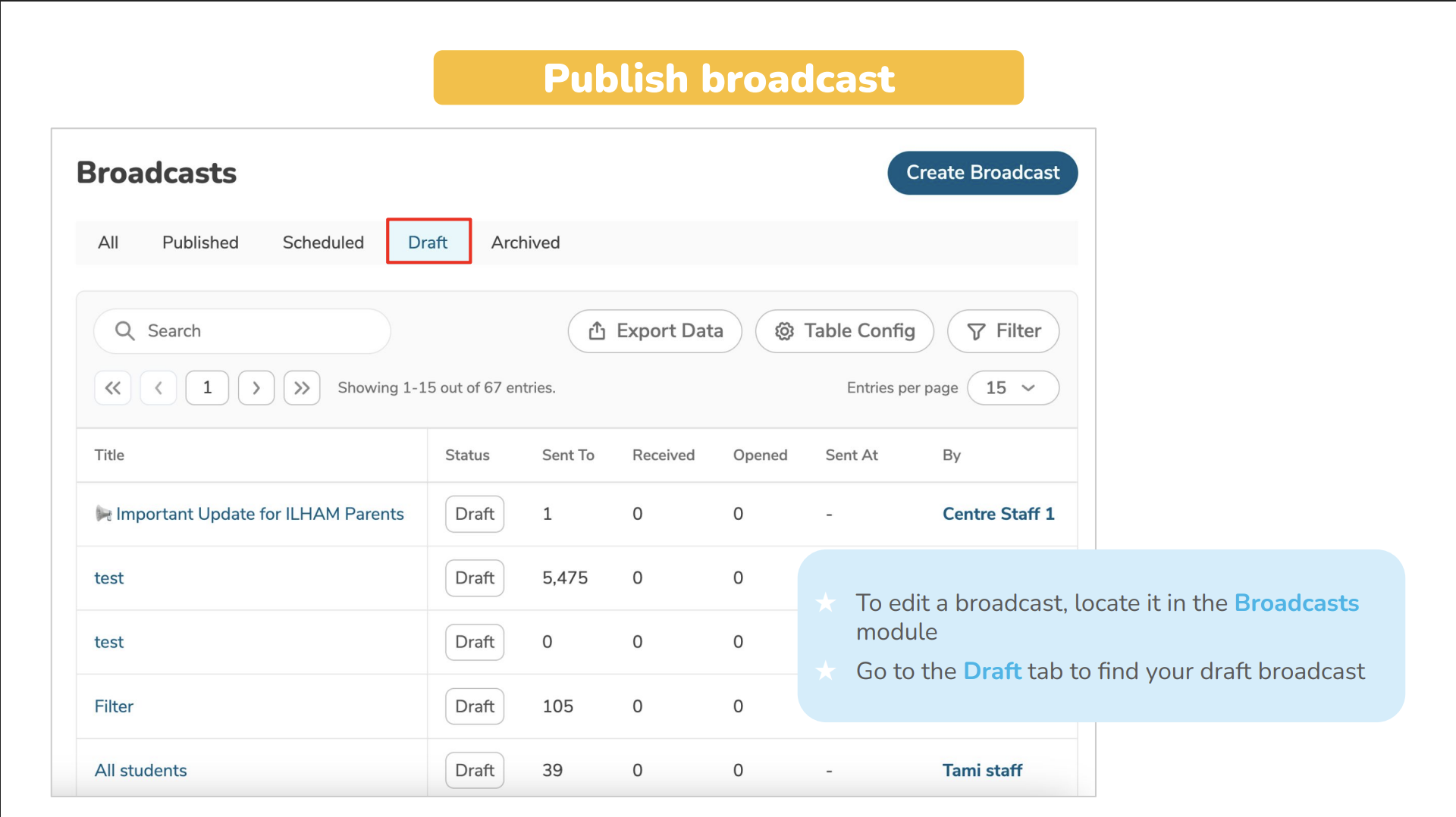
Step 1: Navigate to Your Draft Broadcasts
- Open the Communication module from your main menu
- Click on Broadcasts
- Select the Draft tab
This is where all your unpublished broadcasts live.
Step 2: Open Your Broadcast
Find the broadcast you want to publish in the list and click on it to open the full details.
Step 3: Access Broadcast Actions
Look for the Broadcast Actions button (usually at the top right of the broadcast details page) and click it. A dropdown menu will appear with several options.
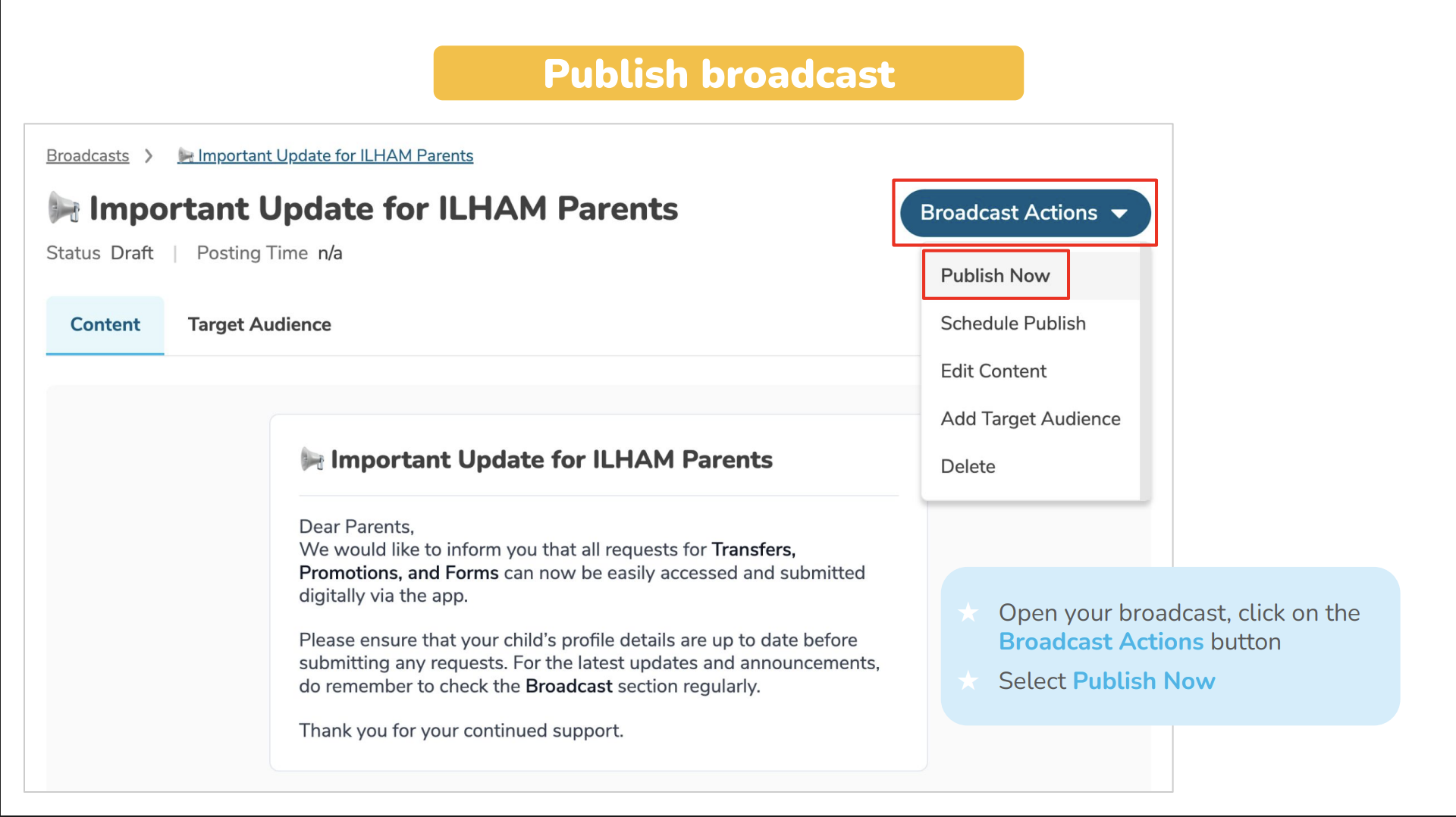
Step 4: Select "Publish Now"
From the dropdown menu, click Publish Now.
A confirmation dialog will pop up—this is your last chance to review before sending!
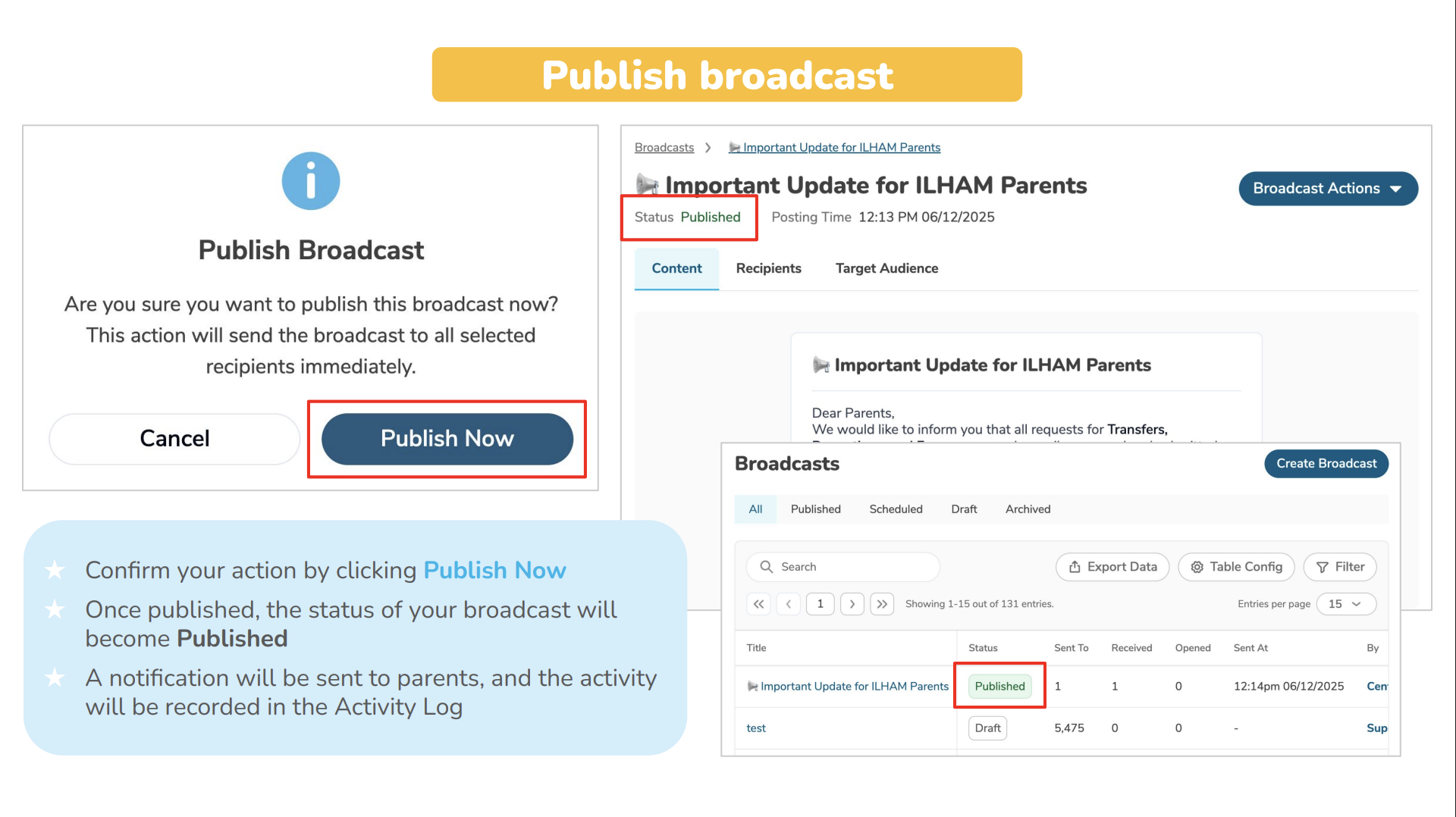
Step 5: Confirm Publication
In the confirmation dialog, you'll see a final summary of your broadcast. If everything looks good, click the Publish Now button to send it out.
Step 6: Publication Complete!
That's it! Your broadcast is now live. You'll see the status change immediately.
What Happens After You Publish?
Once you click that publish button, several things happen automatically:
✉️ Parents Get Notified Immediately
- A push notification is sent to all target parents' devices
- Parents see a notification on their bell icon in the app
- The notification includes your broadcast title
? Broadcast Appears in Parent App
- Your broadcast becomes visible in the parent app right away
- Parents can read it from their Broadcasts section
- It's sorted by sent time (newest first)
? Status Changes to "Published"
- Your broadcast moves from the Draft tab to the Published tab
- The status badge updates to "Published"
- You can see the publication timestamp
? Activity Is Logged
- The system automatically records the publication in the Activity Log
- This creates an audit trail showing:
- Who published it
- When it was published
- Which parents received it
? Screenshot needed: Activity Log entry showing publication event
⚠️ Remember: Once you publish, there's no "undo" button. The only way to remove a published broadcast is to archive it, but parents who already saw it will still have seen it!
Need More Help?
If you're having trouble publishing broadcasts or need assistance with a specific situation, contact the LittleLives support team at mmwss.support@littlelives.com