
How to Schedule a Broadcast
Scheduling is just as easy as publishing immediately—you just pick a date and time instead of sending right away.
Step 1: Open Your Draft Broadcast
- Navigate to Communication > Broadcasts
- Click on the Draft tab
- Find and open the broadcast you want to schedule
Step 2: Access Broadcast Actions
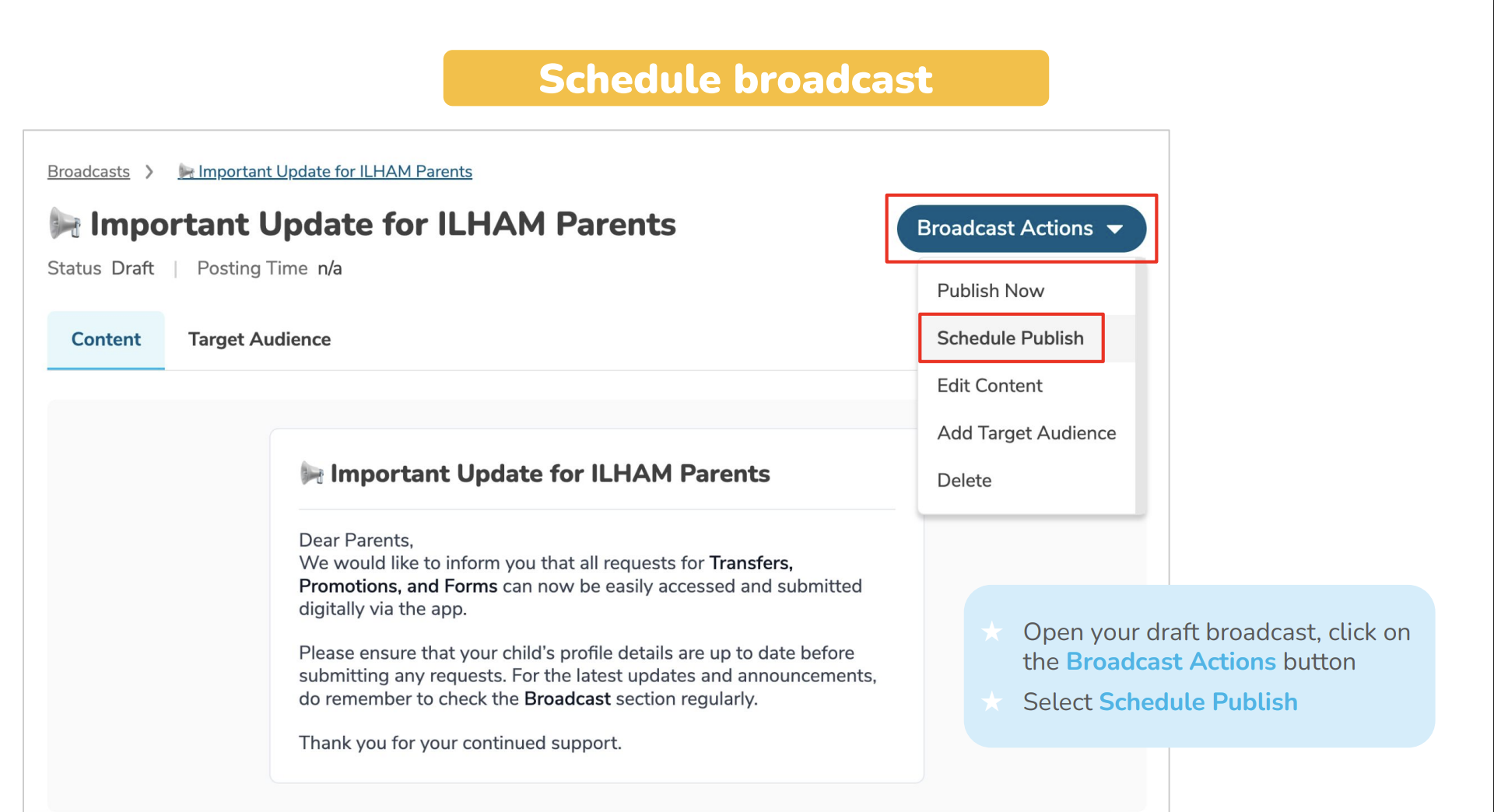
Click the Broadcast Actions button at the top of your broadcast details page. This opens a dropdown menu with several options.
Step 3: Select "Schedule Publish"
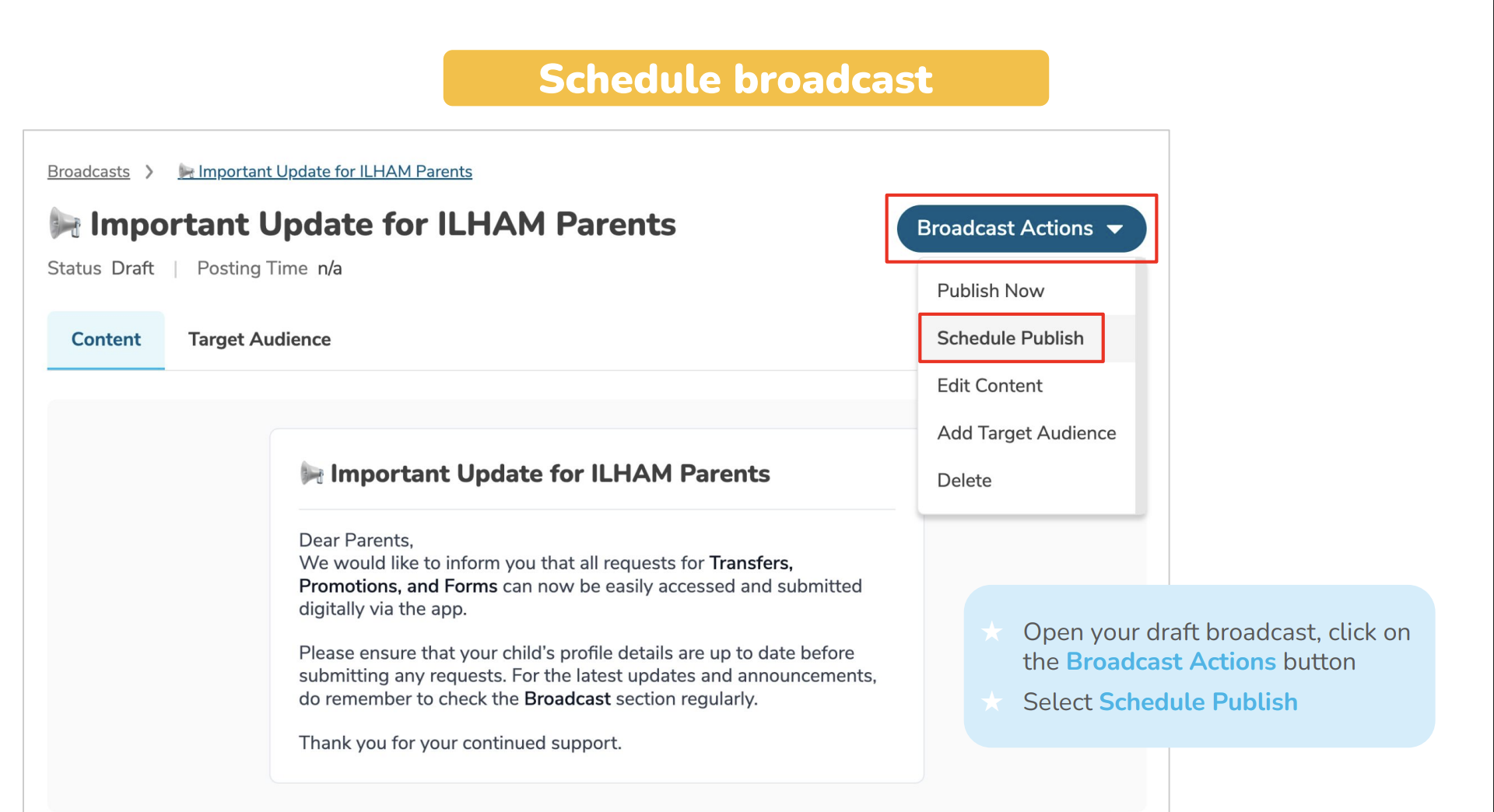
From the dropdown menu, click Schedule Publish.
A date and time picker will appear—this is where the magic happens!
Step 4: Choose Your Date and Time
Pick when you want your broadcast to go live:
Selecting the Date:
- Click on the date field to open the calendar
- Navigate to the month you need
- Click on the specific date
Setting the Time:
- Use the time picker to select hours and minutes
- Make sure you're selecting the right AM/PM
- Consider your parents' time zones if applicable
? Timing best practices:
- Weekday mornings (7-9 AM): Good for daily updates, reminders
- Weekday afternoons (2-5 PM): Great for event announcements, general info
- Weekday evenings (6-8 PM): Suitable for next-day reminders
- Avoid: Late nights (after 9 PM), very early mornings (before 6 AM), weekends (unless necessary)
Step 5: Confirm the Schedule
Once you've set your desired date and time, click Schedule Broadcast to confirm.
Step 6: Verify the Schedule
Your broadcast status will change to Scheduled, and you'll see a banner displaying when it's set to publish.
How to Cancel a Scheduled Broadcast
Changed your mind? Maybe the event got cancelled or the information is no longer relevant? You can cancel a schedule any time before it publishes.
Step 1: Open the Scheduled Broadcast
- Go to Communication > Broadcasts > Scheduled tab
- Find and open the broadcast you want to cancel
You'll see the scheduled time banner at the top of the page.
Step 2: Click "Cancel" on the Banner
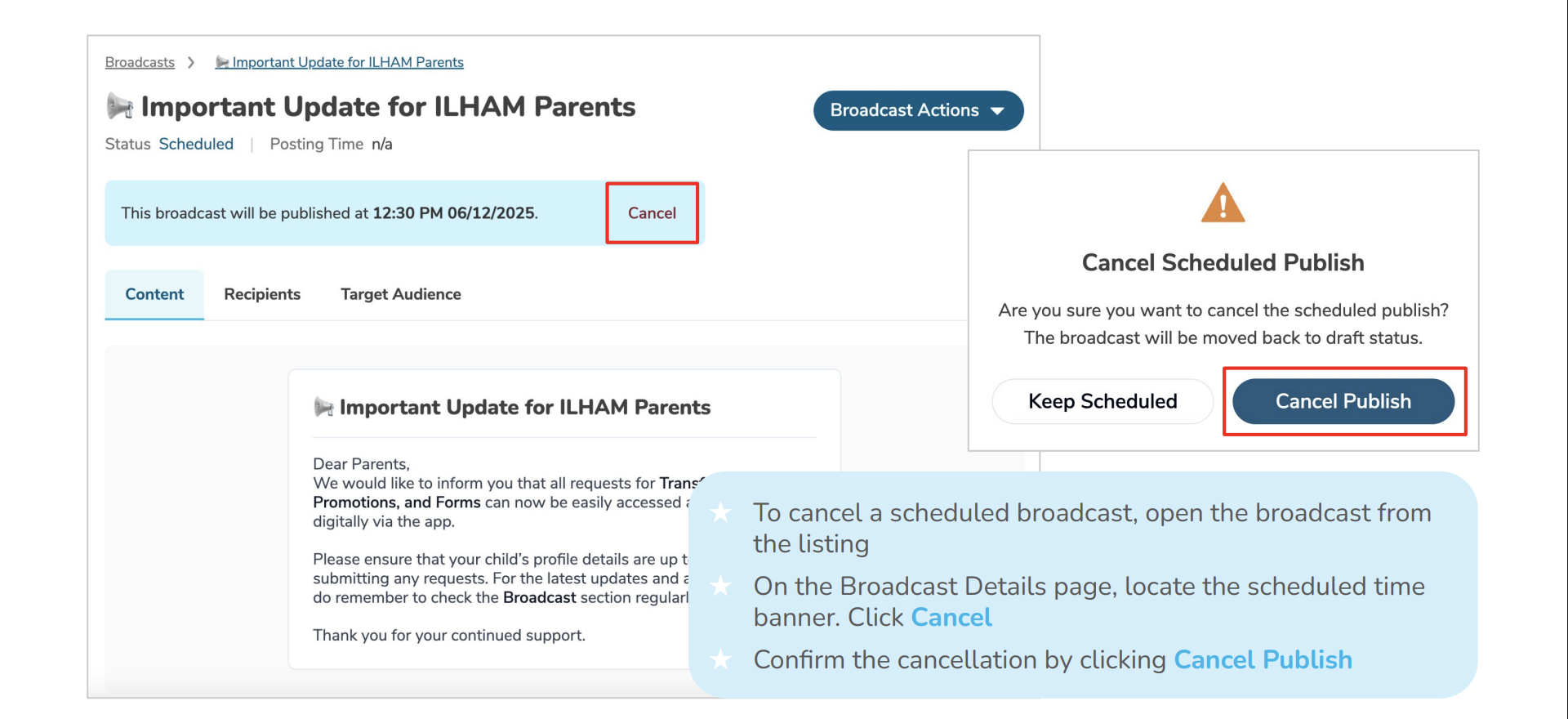
Look for the scheduled time banner at the top of the broadcast details page. There's a Cancel button right on the banner—click it.
Step 3: Confirm the Cancellation
A confirmation dialog will appear asking if you're sure you want to cancel the schedule.
Click Cancel Publish to confirm.
Step 4: Schedule Cancelled
The broadcast returns to Draft status and moves back to the Draft tab. It won't publish automatically anymore—you'll need to manually publish or reschedule it if you want it to go out.