
When to Use Broadcasts:
School announcements
Event notifications
Policy updates
Emergency communications
Class-specific information
Creating a Draft Broadcast
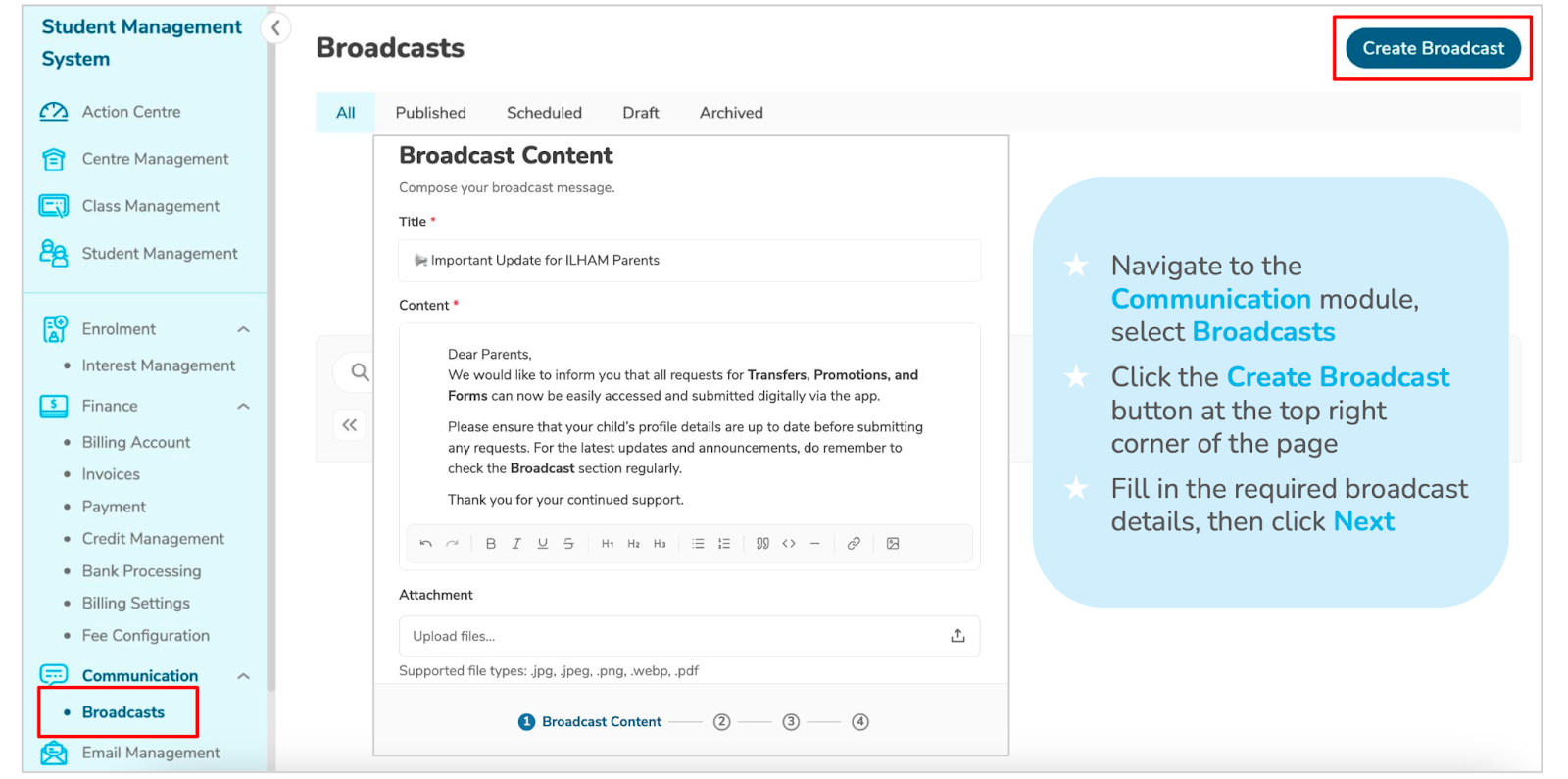
1. Navigate to Communication Module
Go to the Communication module
Select Broadcasts
Click Create Broadcast (top right)
2. Fill in Broadcast Details
Title: Keep it clear and concise
Message Content: Provide the key information
Add attachments if needed
Click Next
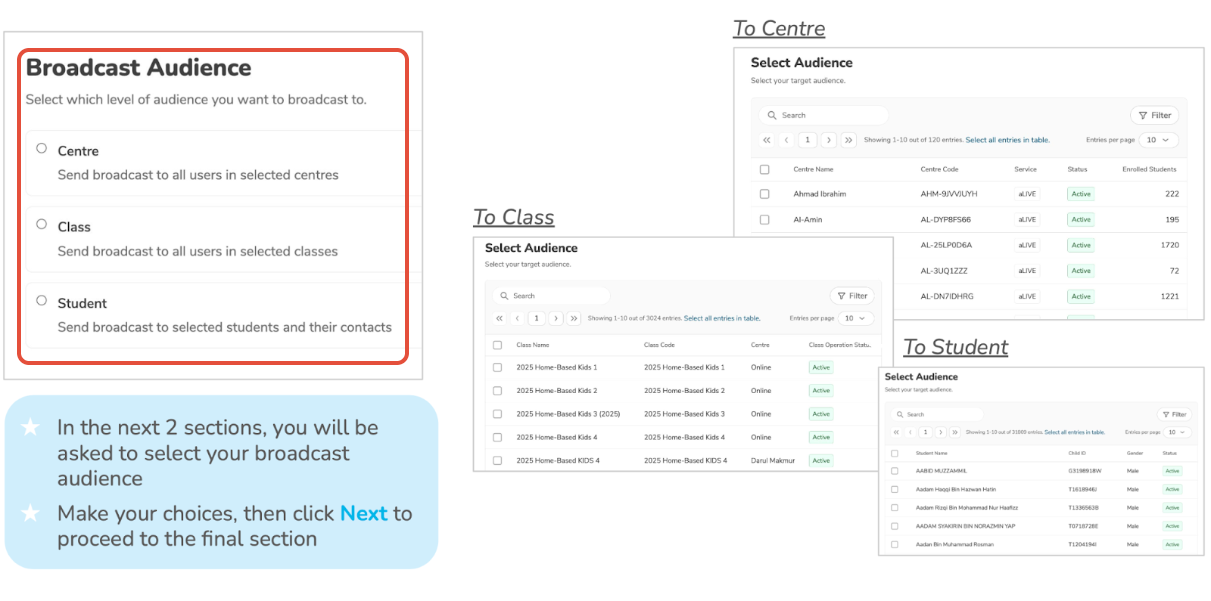
Audience Types:
To Centre: Sends to all parents in the centre
To Class: Sends to specific class(es)
To Student: Sends to individual student(s)
Audience Selection Process
Choose your audience type
Select the specific classes or students
Click Next
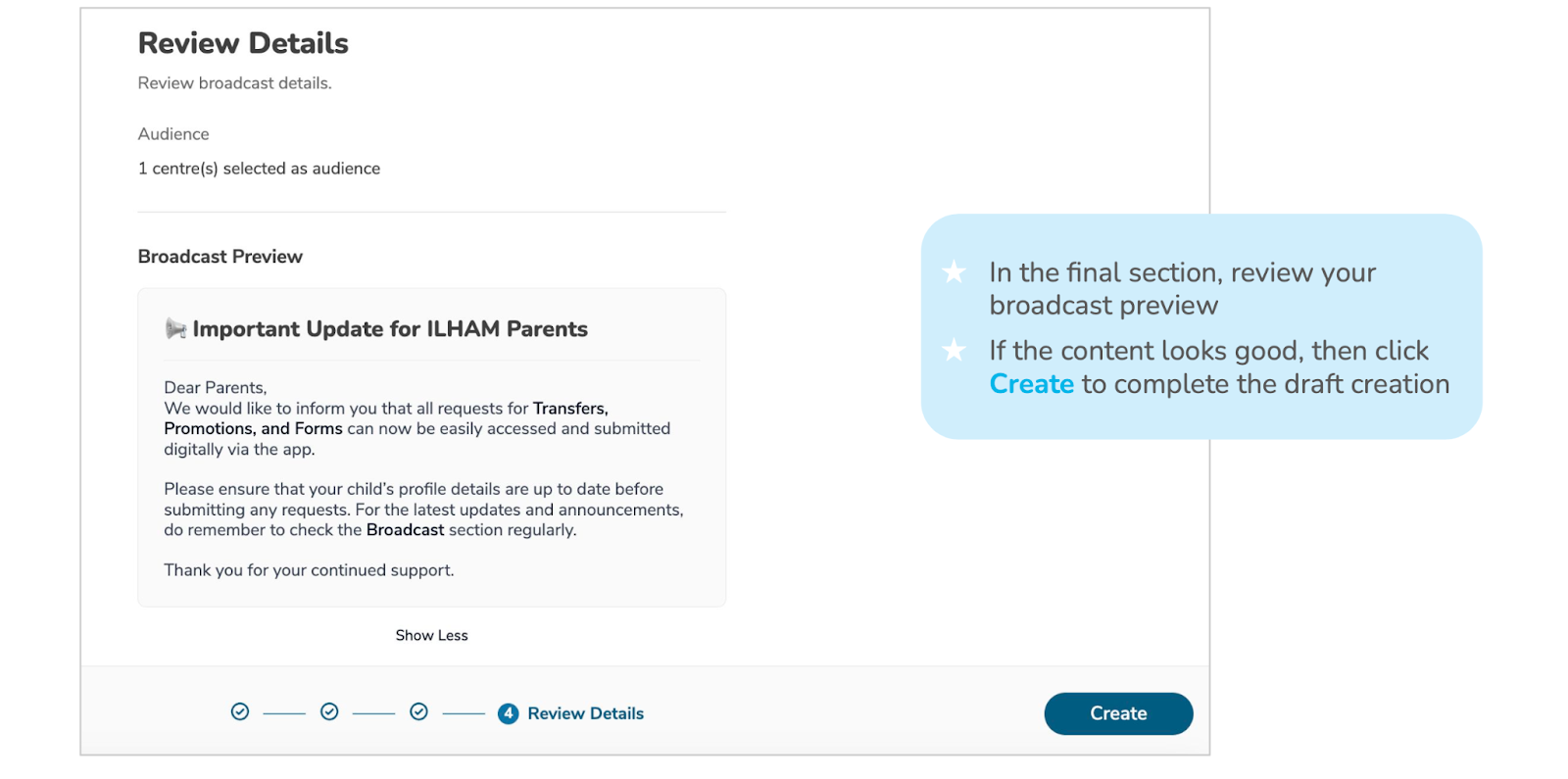
Review the broadcast preview
Click Create to save as draft
Draft Status:
Saved but not visible to parents
Can be edited anytime before publishing
No notifications will be sent out yet
Best Practices:
1. Write clear, concise messages
2. Proofread before publishing
3. Use an appropriate tone
4. Include important dates, deadlines, or instructions
5. Attach supporting documents if needed