
How to edit broadcast content?
Understanding Broadcast States
Draft
Not published and not visible to parents.
Published
Live and visible to parents immediately.
Scheduled
Set to publish at a future date.

Impact of Editing Each State
Editing DRAFT Broadcasts
Changes are reflected in the Content tab and broadcast listing.
Status remains Draft.
⚠️ No notification is sent to parents.
Editing PUBLISHED Broadcasts
Changes appear immediately in the parent app.
⚠️ No notification is sent to parents about updates.
Status remains Published.
Parents must check the broadcast to see the changes.
Editing SCHEDULED Broadcasts
Scheduled time stays the same.
⚠️ No notification is sent.
Status remains Scheduled.
Changes appear when the broadcast is published.
How to Edit a Broadcast
Locate the broadcast in the Broadcasts module.
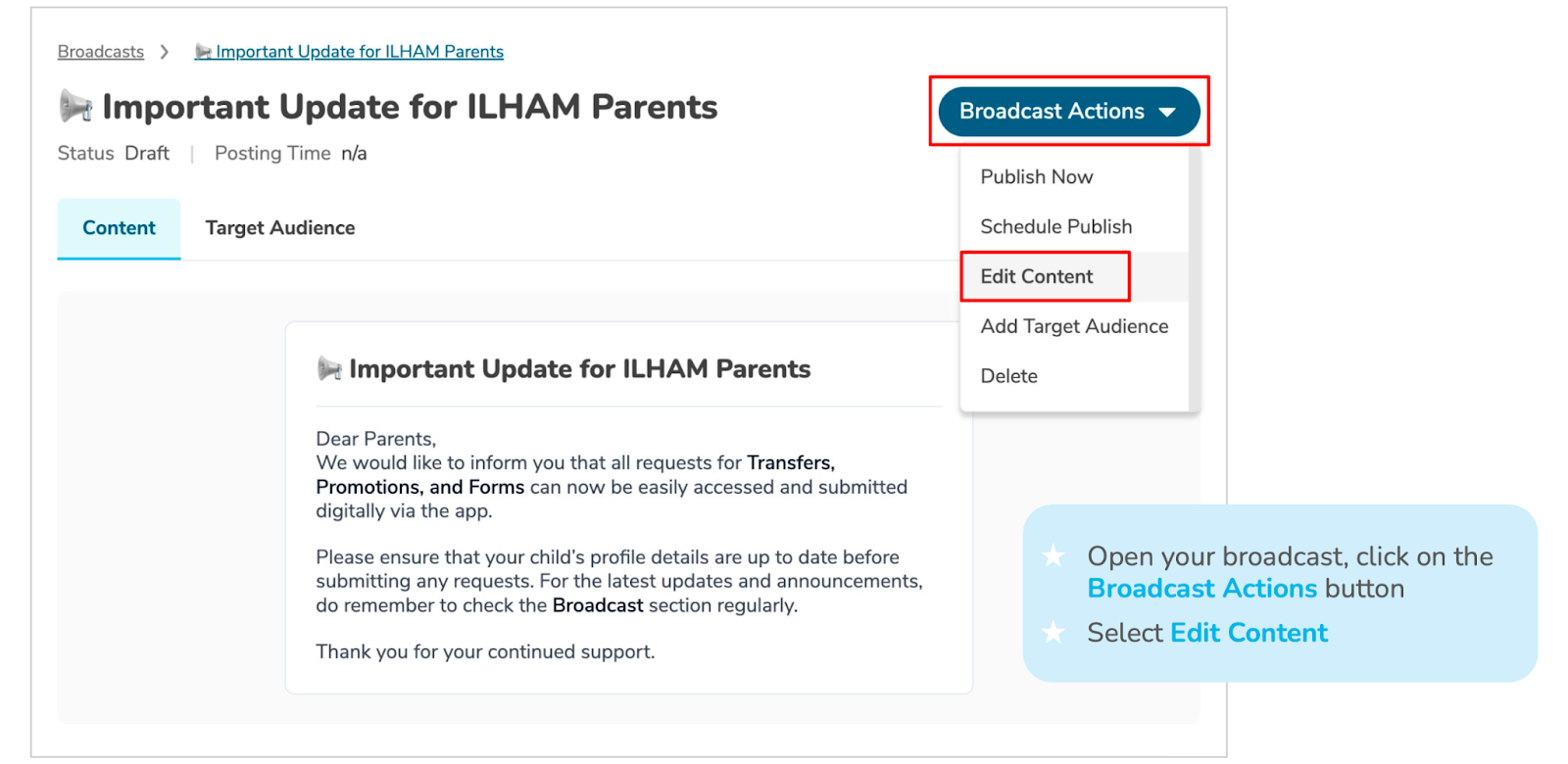
Open the broadcast.
Click the Broadcast Actions button.
Select Edit Content.
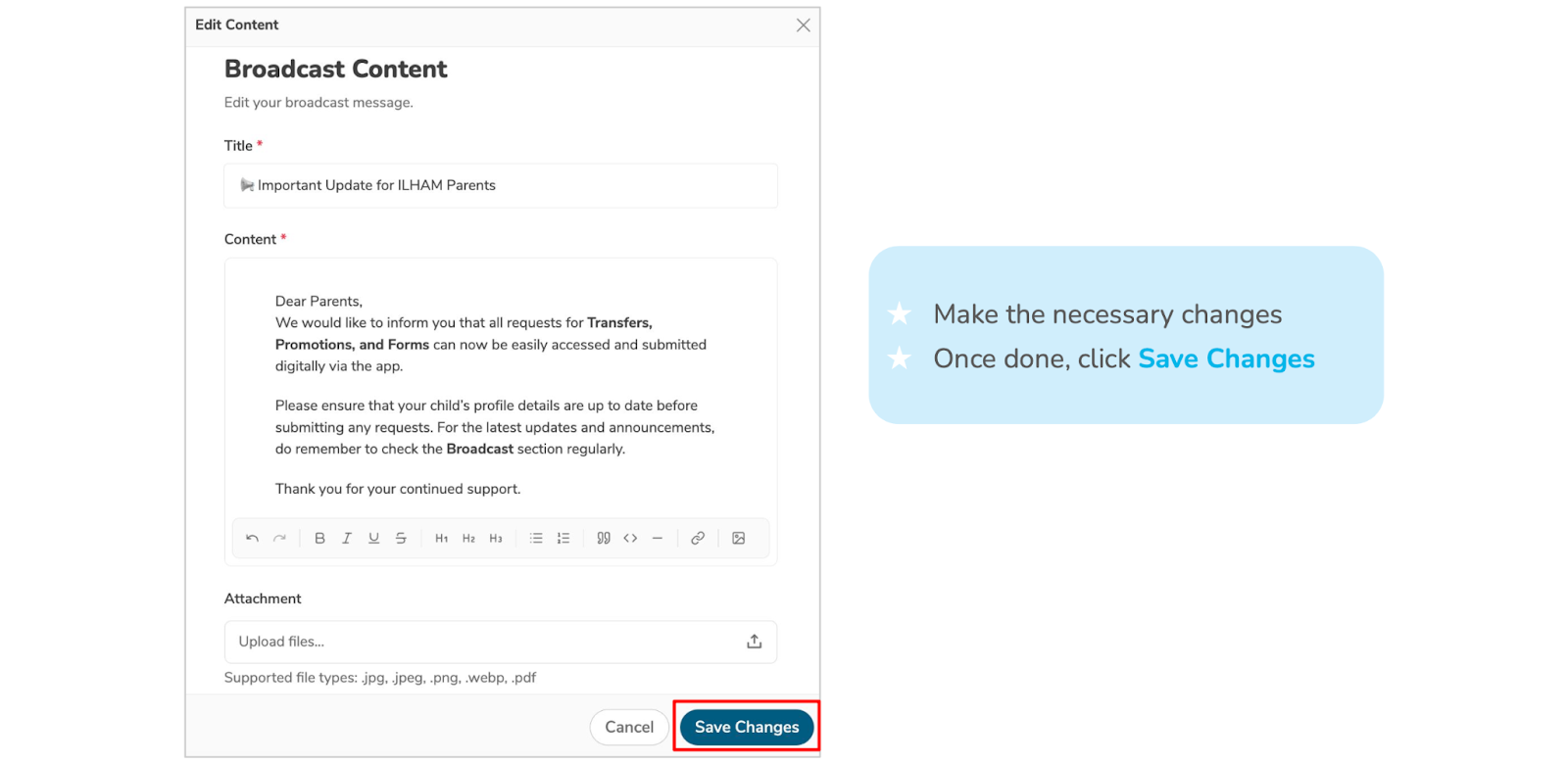
Make necessary changes.
Click Save Changes. ? Check changes carefully before saving.
Activity Logging
All edits are recorded in the SMS Activity Log.
An audit trail is maintained for reference.
Important Warnings
⚠️ Editing a Published broadcast is immediate and cannot be undone.
⚠️ Parents will not be notified of the update unless you inform them.
? Double-check all changes before saving.